
The CircleLoop desktop app gives you the capability to automatically register several different models of phones with CircleLoop.
Supported Devices
The following desk phones can be registered automatically:
|
|
Most Yealink and Snom desk phones will register automatically when added to CircleLoop. If a supported Yealink or Snom device does not register as expected, our onboarding or support team can generate a unique configuration file and provide steps to upload this to the handset.
Before contacting us, please ensure the MAC address entered in the CircleLoop app matches the device exactly.
If you wish to register a different device, please review our guide for ‘Registering an Unsupported Desk Phone / Other'.
Adding a Yealink / SNOM Desk phone in-app
In the CircleLoop app, first click the Settings icon and then select Devices.
In the Devices page, click Add Device.
Select Desk phone.

Choose your make and model from the drop-down menus. From the Make drop-down box, select the make of your phone: Snom or Yealink. From the Model drop-down box, select the model of your phone.
If you have another device, click Other, and once added, you will be provided the SIP credentials to manually add to your SIP device *please review our guide for ‘Registering an Unsupported Desk Phone / Other'.

Please then enter the MAC Address of your phone. To find the MAC address of your phone, please consult the documentation that came with your phone; this can also usually be found on the base of the device.
Click Add Desk Phone.
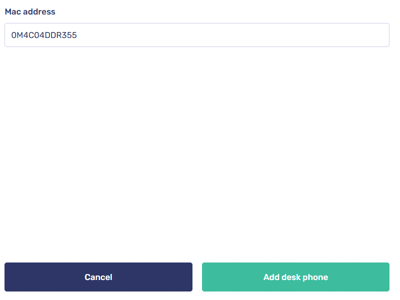
The page will update, showing the progress of registration through the following steps:
|
Mac Validated |
|
Settings Applied |
|
Handset Registered |
You can view the current status of the device and monitor its progress through registration in the Devices page. It is normal for the device to restart several times during setup.
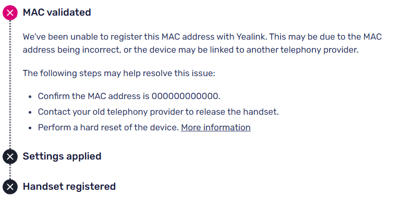
Once all steps have completed successfully, the desk phone is ready for use.
Removing a Desk phone
If you no longer wish to use a device with CircleLoop it can be deleted.
From the Devices page, in the list of manually added devices, click on the device you wish to delete.

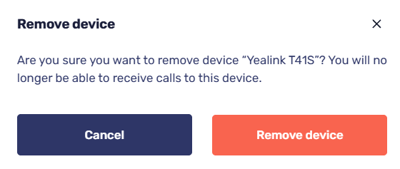
The details of the device are displayed. Click Remove.

If you are sure you want to delete the device, Click Remove device.
Troubleshooting Desk Phones
If your desk phone is not registering, please check the following:
If you are still having issues, please keep the Mac address added within your Device Settings and contact your CircleLoop onboarding agent or Support team.