
Add and share recordings (on Desktop, Web and mobile)
Recordings for voicemail or hold music are added via your ‘Calls’ settings screen.
From here, you can add recordings for the following features:
-
Voicemail
-
Out of hours
-
Play a message (no voicemail)
-
Hold music.
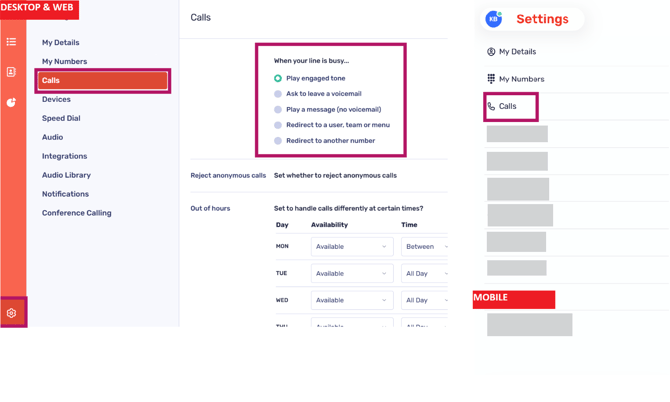
Any recordings you upload will be automatically stored in your CircleLoop Audio Library. These recordings can be shared with other members of your organisation, allowing them to use them within their own CircleLoop call configurations.
Your Audio Library
All CircleLoop audio recordings are stored within the Audio Library. You may also upload or record new audio from this same section. Click here to learn more.
Audio recommendations (desktop)
For desktop versions of PhoneLine+ (Windows and Mac), we highly recommend using a good-quality headset when recording and uploading your own audio. While the built-in microphone in laptops can suffice for basic tasks, it often falls short for regular audio recording or making calls.
-Microphone settings on Mac
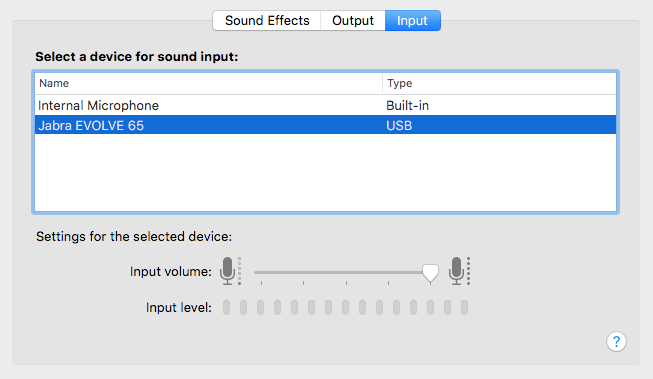
Mac users can easily set a default microphone by navigating to their ‘System Preferences’.
-
First, plug in your USB headset (or connect to one via Bluetooth)
-
Click your ‘System Preferences’ icon, then click ‘Sound'
Then select the ‘Input’ option and select your headset.
-Microphone settings on Windows
Windows users can set default audio settings from within System Settings > Sound
-
First, plug in your USB headset (or connect to one via Bluetooth)
-
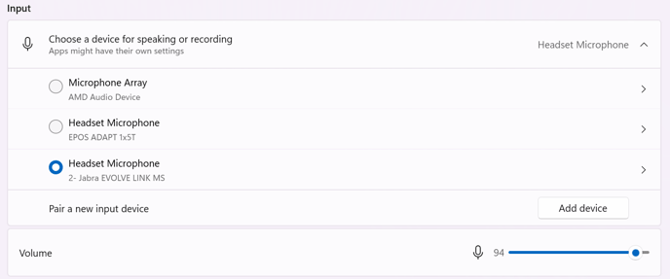
Open the 'Settings' menu, click ‘System’, then ‘Sound’
-
Under 'Input', select your headset from the list

Audio recommendations on mobile
Typically, mobile phones have high-quality microphones and speakers because are designed for making calls.
Your phone should automatically connect to any external headsets or devices that you connect to it via Bluetooth.
Troubleshooting
Saving Your Preferences
Once configured, CircleLoop will remember your audio settings each time you reconnect the same device. You should only need to set this once, as Circleloop should recognise the default settings stored.
Issues with Saved Preferences on Windows
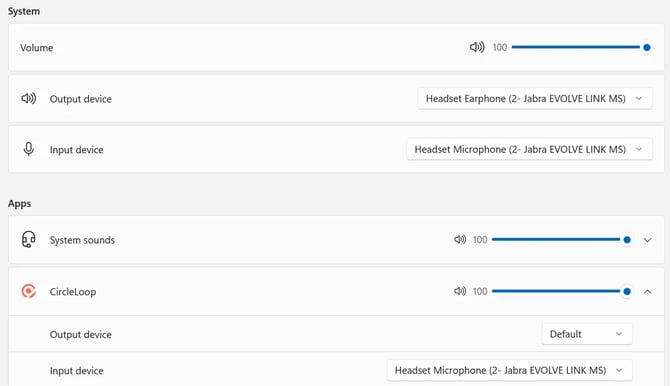
Windows allows you to set default audio devices for individual applications. These settings can be managed from the same ‘Sound' settings screen by scrolling down and selecting' Volume Mixer’
In Volume Mixer, you can assign your headset as the main output and input device for specific apps like CircleLoop
If your headset is selected here as both the main speaker and microphone, it will continue to be used by CircleLoop even if the Windows input or output defaults change
This can be useful if your computer occasionally switches to other devices by default, as it ensures CircleLoop continues to use your preferred headset
If you cannot upload a recording
If you are not able to record or upload a new recording, please check the following:
-
The file that you are trying to upload is no more than 1.5MB in size
-
The music that you are trying to record is no more than 60 seconds in length.
If others within your organisation can’t use your recording
If other users within your company are not able to use a recording that you have recorded or uploaded, please check the following:
-
The ‘Shared Recording’ toggle is turned on next to the recording within the ‘Audio Library’.
If you are still having issues with this feature, please contact your Administrator, CircleLoop onboarding agent or Support team.