
The Audio Library is your repository of audio recordings, including:
-
Any recordings you have created or uploaded yourself
-
Shared recordings, which are generally audio or video files that are created or uploaded by individuals within your organisation.
These recordings are accessible for you and your colleagues to use throughout CircleLoop for features such as:
-
Voicemail prompts
-
Messages you want to leave for when a caller cannot connect ('Play a message no voicemail')
-
Hold music.
How to find your audio library on Desktop & Web App
Finding your audio library on desktop is a breeze.
Simply click the ‘Settings’ cog, then ‘Audio Library'.
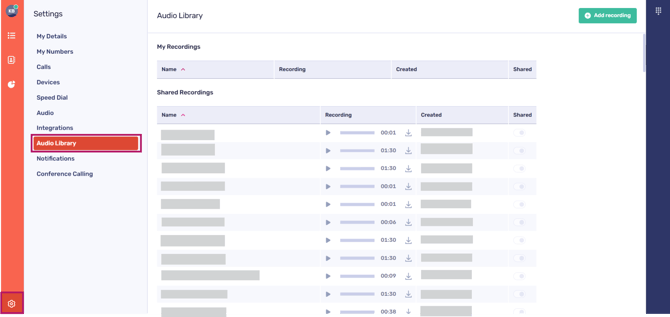
‘My Recordings’ and ‘Shared Recordings’
Your audio recordings are categorised into two sections: ‘My Recordings’ and ‘Shared Recordings’.
Next to each recording, you have the options to:
-
Listen to the recording
-
View the recording’s runtime
-
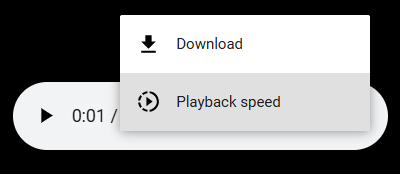
Download the recording to your computer/device (or adjust the playback speed) - when downloading a file, click the three dots on the preview screen:
-
Check the creation date of the recording
-
Check whether the recording is shared or not.
Adding a new recording
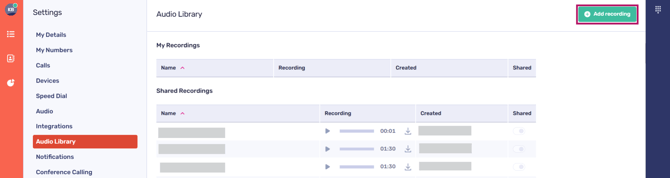
You can add new recordings to this page directly, if you wish.
To begin, click on the ‘Add recording’ button located at the top right corner of the screen.
-
Press the microphone button to capture new audio using your device's default microphone; Or
-
Simply drag a file from your computer or device into the designated drop-zone, or click on the area to upload a new file.
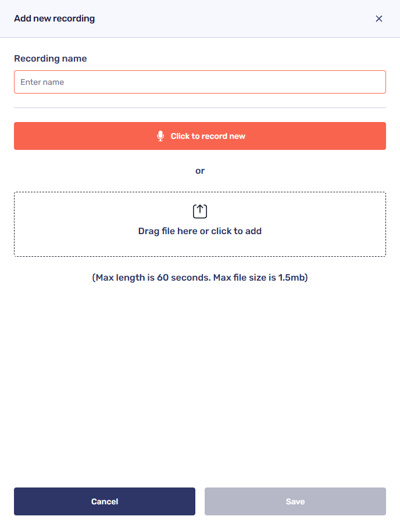
Remember! Your recordings should not exceed 60 seconds in duration and must have a maximum file size of 1.5 MB.
How to find your audio library on mobile
Finding your audio library on mobile is a breeze.
Simply tap the ‘Settings’ cog, then ‘Audio Library'.
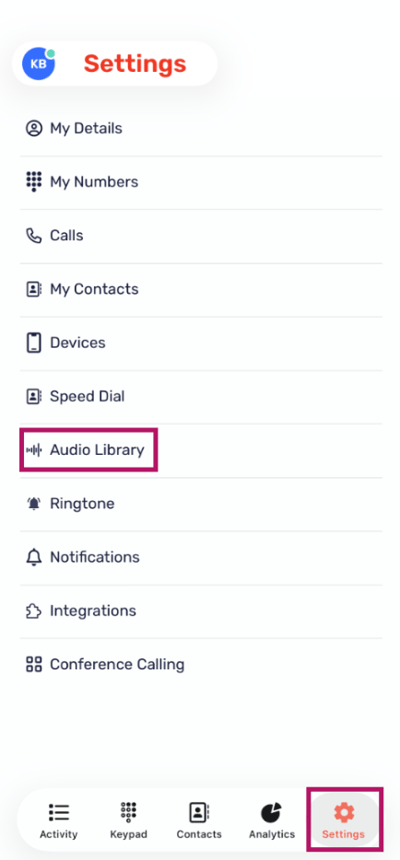
Your audio recordings are categorised into two sections: ‘My Recordings’ and ‘Shared Recordings’ (ensure that the drop-down menu is active if you are unable to see any recordings).
Next to each recording, you have the options to:
-
Listen to the recording.
Adding a new recording
You can add new recordings to this page directly, if you wish.
To begin, click on the ‘Add recording’ button located at the top right corner of the screen.
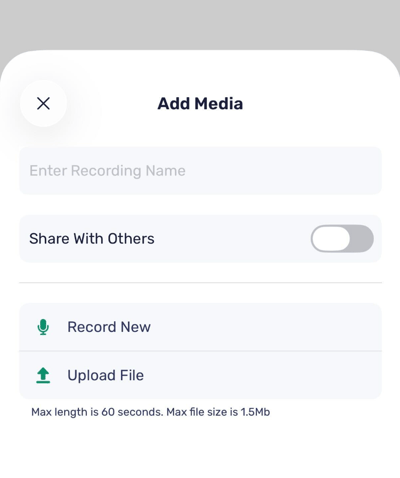
-
Press the microphone button to capture new audio using your device's microphone; Or
-
Tap ‘Upload File’ to add an existing recording from your device.
Toggle the slider to share this recording with others in your organisation, if you wish.
Remember! Your recordings should not exceed 60 seconds in duration and must have a maximum file size of 1.5 MB