
Setting a voicemail prompt
Customising your voicemail message is easy! You have the option to record your own message, upload a pre-recorded one, or choose from a shared library of available recordings.
-
Record allows you to use your microphone/device to create a new audio track
-
Upload allows you to import an audio track, if you already have recording you wish to use. The maximum file size is 1.5MB
-
Library allows you to select from a list of tracks shared amongst CircleLoop users within your company. For example, if your organisation uses a template for voicemail messages.
How to set a voicemail prompt on Desktop & Web App
If you haven't set up a voicemail message yet, you can easily record or upload one through your CircleLoop settings screen.
Click the cog to view your PhoneLine+ settings, then click ‘Calls’ > 'Call Settings'.
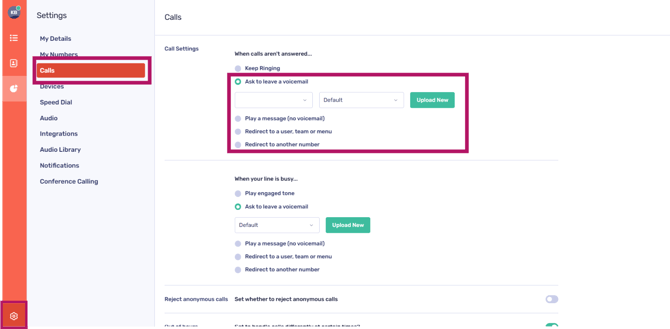
Select ‘Ask to leave a voicemail’.
You have the option to set the voicemail duration to play for anywhere between 10 to 30 seconds if a call goes unanswered.
Choose a voicemail prompt from CircleLoop’s default option or select from any recordings you have previously uploaded.

Recording a voicemail prompt
If you haven't set up a voicemail message yet, you'll notice an 'Upload New' button available for you to use.
By pressing this button, you can activate the microphone icon to start recording audio from your device. To conclude the recording session, simply click the ‘stop’ icon.
You can easily play back your recording by clicking the ‘play’ icon. If you’re satisfied with it, simply press the ‘save’ button to set it as your voicemail message. Should you wish to re-record, you can click ‘cancel’ to delete the current recording and start over.
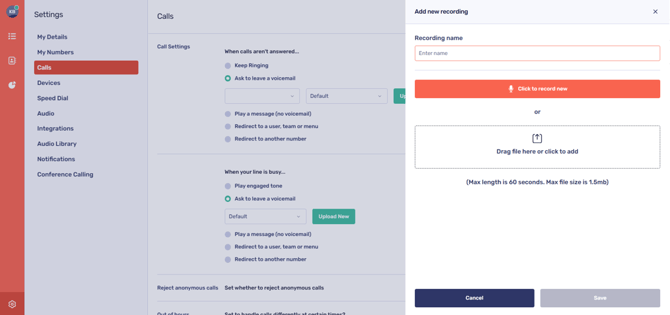
 Remember to name your recording before you save it!
The maximum length for a recording is 60 seconds, or 1.5mb.
If you have a voicemail message set but wish to create a new one, you will see a ‘redo’ button. Clicking this will allow you to override your existing message with a new recording.
Upload a file to use as a voicemail prompt
If you would like to upload an existing recording, you can easily do so by either dragging the file into the designated drop area or by clicking on the area to add it manually.
Maximum length and filesize is the same for pre-recorded messages.
To add your voicemail prompt recording, simply click ‘Save’.
Receiving voicemail
When you receive a voicemail, it will appear in your call activity feed. You will notice a voicemail icon alongside the caller card.

To access your voicemail recording, simply click the caller card then click the play icon.
If you wish to download the voicemail, you can do so by clicking the download icon.

Adding contacts from voicemail
If the caller is not listed in your contacts, you can easily add them by clicking ‘Add contact’ via the call activity feed.
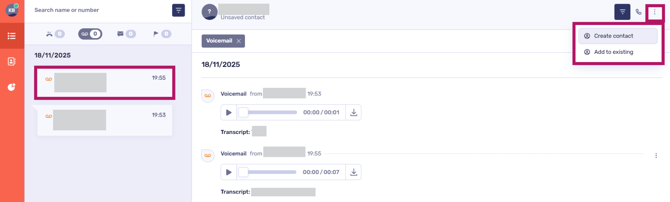
A new contact area will appear, allowing you to input their details.


If you wish to share this contact with other members of your organisation, just toggle the ‘Set as shared'’ option on.
How to set a voicemail prompt on mobile
CircleLoop allows you to set up a voicemail inbox, so that callers can leave you a message if you are unavailable to take their call.
The steps to listen to your voicemail will differ between devices.
Setting a voicemail prompt
On mobile devices, you can ask a caller to leave a voicemail message when:
-
Calls go unanswered
-
Your line is busy.
To configure a voicemail prompt in both of these scenarios, navigate to your CircleLoop settings by tapping the gear icon.
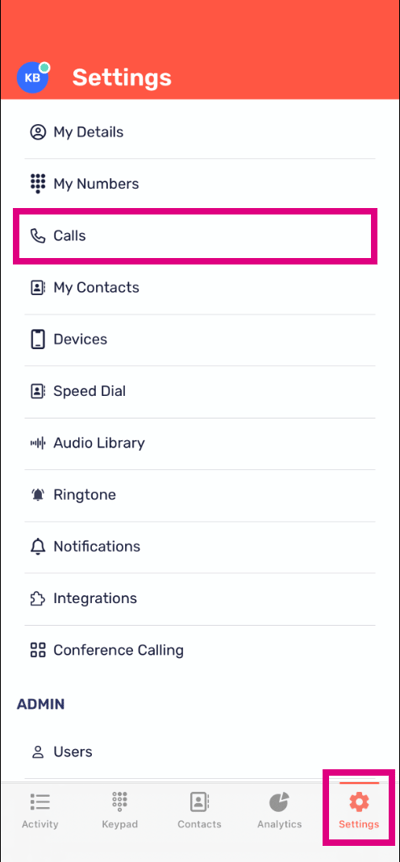

Tap ‘Calls’ then select ‘Ask to leave a voicemail' on either option.


Select the option to 'Ask to leave a voicemail' for either choice (unanswered calls or busy lines).
You have the option to set the voicemail duration to initiate for anywhere between 10 to 50 seconds if a call goes unanswered (or if you are too busy to answer).


Next, choose a voicemail prompt sound. You can add:
-
A new recording
-
An existing recording from your device; Or
-
A recording from ‘My Recordings’ or ‘Shared Recordings’.
Recording a voicemail prompt
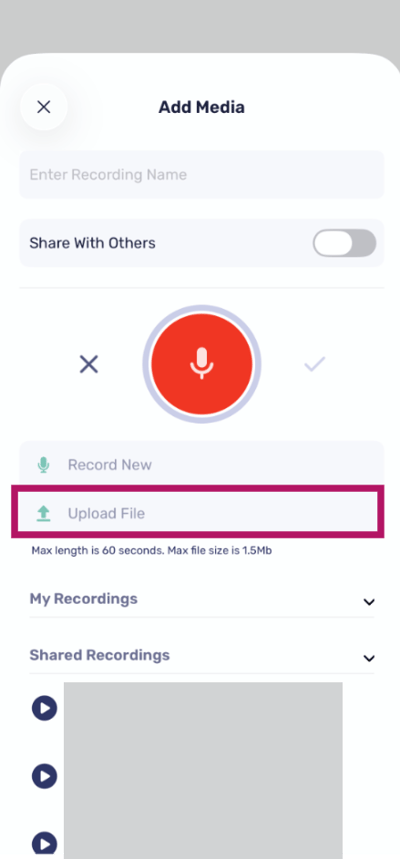
If you haven't set up a voicemail message yet, you'll notice a 'Record New' button available for you to use.
If you want other CircleLoop users within your organisation to access the recording, please toggle the ‘Share with others’ option on.

Press and hold the microphone button to start recording audio from your device. To conclude the recording session, simply stop holding the button and press the tick icon when you are happy with the result.


You can easily play back your recording by clicking the ‘play’ icon. If you’re satisfied with it, simply press the ‘Done’ button to set it as your voicemail message. Should you wish to re-record, you can press the ‘X’ icon to delete the current recording and start over.
Remember to name your recording before you save it!
The maximum length for a recording is 60 seconds, or 1.5mb.
Upload a file to use as a voicemail prompt
To upload a file from your device for use as a voicemail prompt, just tap the ‘Upload file’ button on the same screen displayed above.
If you would like this recording to be accessible for others within your organisation, please select the option ‘Share With Others’.

Receiving voicemail
Upon receiving a voicemail, it will be readily visible in your call activity feed, accompanied by a voicemail icon next to the caller's card.
Simply tap the ‘play’ icon to listen to your voicemail.
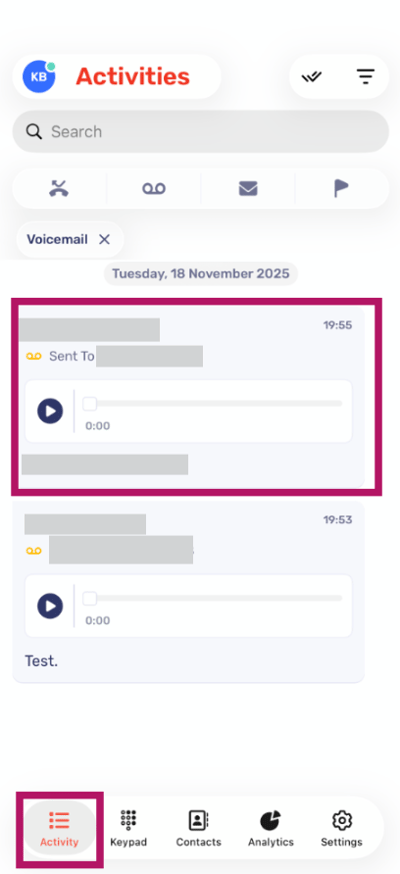
To download the voicemail recording: Press and hold your finger on the calling card until a menu of options appears. Then, tap 'Download Recording' to save it to your device (please note that the view may vary depending on whether you are using iOS or Android.)


Adding contacts via voicemail
To add a new contact from a voicemail recording, simply press and hold the calling card until a set of options appears (as shown above). Then, tap the 'Create New Contact' option.

This will direct you to the contact creation screen, where you can enter their details.


To make this contact visible to other CircleLoop users within your organisation, please toggle the 'Set as Shared Contact' option on.
Troubleshooting
If you are not currently receiving voicemails, please check the following:
-
You have a number assigned to you
-
Your call settings are set to ‘Ask to leave a voicemail’
-
You have recorded/uploaded a relevant voicemail message for callers to hear when you are not available
-
Settings for how calls should be answered ‘Out of hours’ do not conflict with your call settings
-
If you are not receiving voicemail notifications via email, check to see if your mailbox server is flagging CircleLoop emails as spam.
If you are still having issues with this feature, please contact your CircleLoop Onboarding agent or Support team.