
Starting the registration process:
Your welcome email
For new accounts created through a free trial
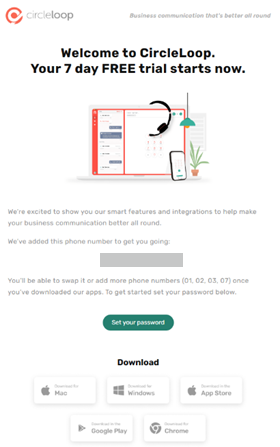
Once you have signed up for a Circleloop 7-day free trial, you will receive a welcome email inviting you to start the registration process.
For team members added to an existing company account
If your company has added you to an existing account, you will receive a welcome email inviting you to start registering your user account.
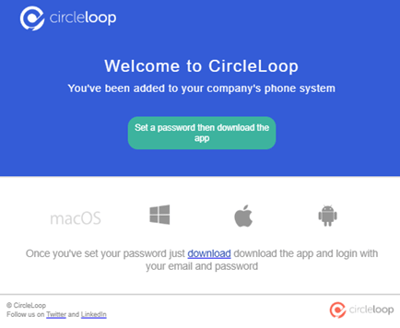
Please click the registration link and follow the registration process on a PC, laptop, or MAC and NOT your mobile device.
The welcome link in your email is valid for 30 days. If you do not click it within this timeframe, request a new one from the CircleLoop onboarding or support teams. You can also request a password reset link from the application login screen.
If you have not received an email:
-
Check your email account’s spam/junk folder
-
Check your provider has the correct email address for you
-
Ask your provider to re-send the invitation.
Setting your password
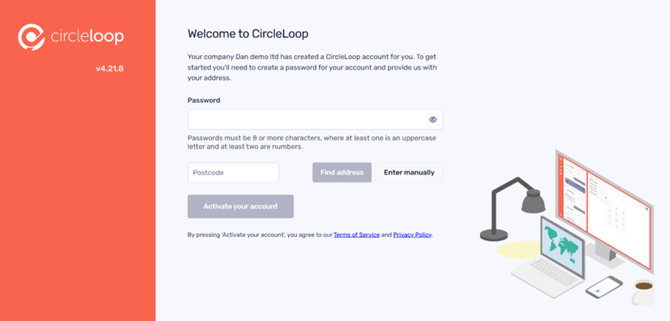
You need to create a password to use for your CircleLoop login. This password must be:
-
8 or more characters; And
-
Contain letters and at least one number.
Provide your address for emergency services
Your address is needed for the purpose of emergency services. If your address is not presented in the dropdown list, you can edit this manually.
Download your CircleLoop app
Once you have created a password, you will have the choice to either use the web application or download the desktop version.
The app is cloud-based and available on desktop, Android, and iOS. Features are consistent across all devices, with only slight differences in layout design to account for screen size and responsiveness.
For web and desktop app downloads:
-
Desktop app download: Download the CircleLoop desktop app. The desktop app allows you to download a program to your computer. The desktop app is available for Mac OS and Windows. If you click the ‘Download our Desktop App’ button, the correct version for your computer will begin downloading.
-
Web app download: Access CircleLoop web app. The web app allows you to use PhoneLine+ within your web browser (e.g. Edge, Safari, or Chrome). You can bookmark the CircleLoop URL for easy access in the future. Firefox is not supported.
For mobile downloads:
-
iOS app download: the iOS CircleLoop app can be downloaded from the Apple App Store.
-
Android app download: the Android CircleLoop app can be downloaded from Google Play.
Install your CircleLoop app
Install the Mac app
After downloading the Mac app:
- Double-click the CircleLoop.dmg file in your downloads folder
- In the window that appears, drag and drop the CircleLoop app file to the Applications folder.
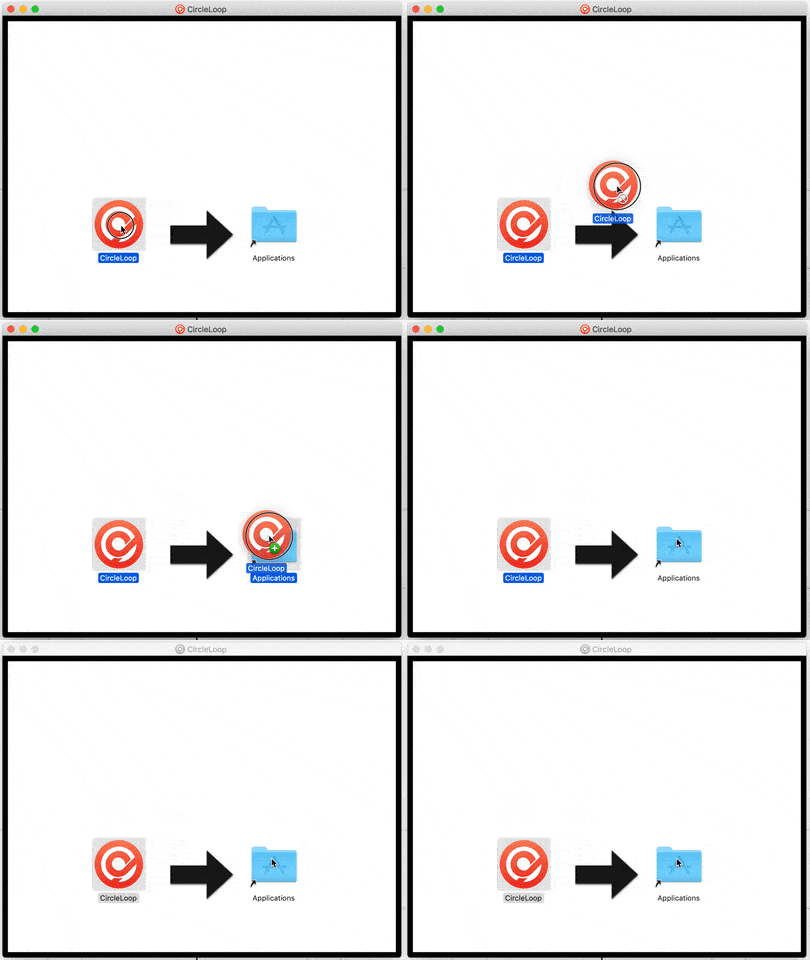
- The CircleLoop app will then be available in your Applications folder. Simply double-click it to launch.
The first time you open CircleLoop a warning will be displayed, reminding you that the app was downloaded from the Internet. Confirm that you want to open the app - click Open.
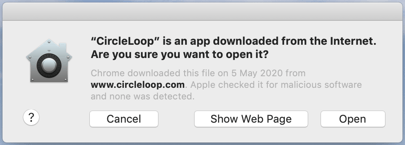
CircleLoop will open, and you can proceed to sign in.
Install the Windows app
After downloading the Windows app.- Double-click the CircleLoop.zip file in your downloads folder
- Double-click the installer file circleloop.exe
- After the installation has finished, the CircleLoop app will launch
- Once you've installed the app, log in to get started using your account.
If you're having trouble installing the Windows app you may be using a 32-bit machine.
CircleLoop no longer supports 32-bit machines, but to confirm you can follow the instructions below:
- Click the Windows icon
- Click the Settings icon on the left of the menu
- Then choose System
- Select About from the menu on the left
- Information about your PC will then be displayed. Look for a line which says System Type. This will say either "32-bit operating system" or "64-bit operating system"

If you have a 32-bit operating system you will need to use the web app or upgrade your machine.
Troubleshooting
If you can’t download the app:
If you are not able to download the CircleLoop app for your mobile device, please check the following:
-
Your device has a current and up-to-date iOS or Android operating system installed. We recommend iOS version 13 and above or Android 10 to ensure compatibility.
-
If you are still having issues with this feature, please contact your CircleLoop onboarding agent or the Support team.
If you can’t download the CircleLoop desktop app on your computer:
Check the following:
-
Check you have a current and up-to-date Windows or Mac operating system installed on your computer.
-
You have the correct level of permission on your computer to be able to download and install applications from the internet.
-
Your company does not restrict the downloading or installation of applications onto your computer.
If you can’t access CircleLoop from the web:
-
Please check that you are using the latest, up-to-date browser for Edge, Safari, or Chrome. Please view the ‘Minimum system requirements’ page
-
Remember, Firefox is not supported by CircleLoop on the web.