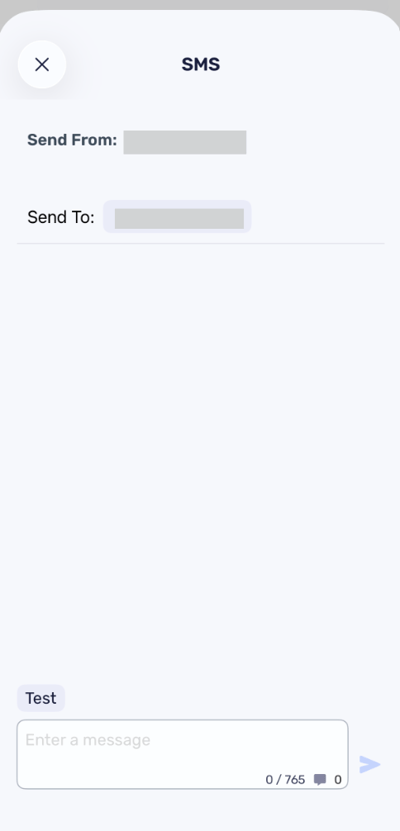
CircleLoop supports inbound and outbound SMS through the CircleLoop apps.
To use SMS, you'll need a UK mobile number assigned directly to your user account. Mirrored mobile numbers are not supported for SMS.
SMS notifications can be received in-app and via email, depending on your preferences. These can be managed from Settings > Notifications.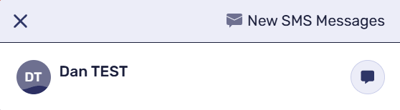
All SMS activity appears in your Activity Feed, grouped under the correct contact, and you can easily show only SMS activity by selecting SMS in the Activity Feed filters.
Messages that exceed the standard character limit (160) will still appear as a single, continuous message in the app, but will be billed as multiple SMS parts at the standard rate.
To activate SMS on your account:
-
Contact CircleLoop Support to enable SMS.
-
Add a UK mobile number to your user account
Adding a mobile number to your account
To add a UK mobile number to your account, you’ll need to be signed in as a CircleLoop Admin. Only Admin users can access Admin Settings and manage numbers in the account.
-
Click on Admin Settings.
-
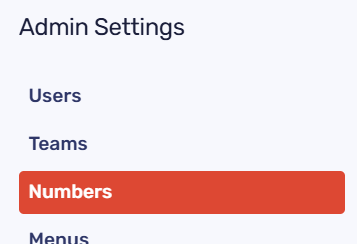
On the left-hand side menu, select Numbers.
-
Click Add Number +.
-
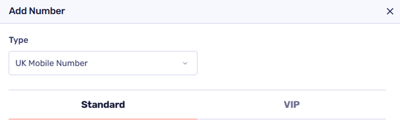
Choose UK Mobile Number, select a number from the list displayed (we show the top 20 available), and click Add Number.
Once the mobile number has been added, it must be assigned to a user or a team for SMS to work correctly.
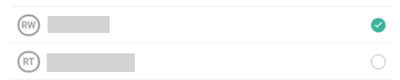

Please note: When a mobile number is assigned to a Menu/IVR, inbound SMS messages can only be viewed by CircleLoop users who have been selected to receive notifications for that Menu.
Sending SMS on the Desktop & Web app
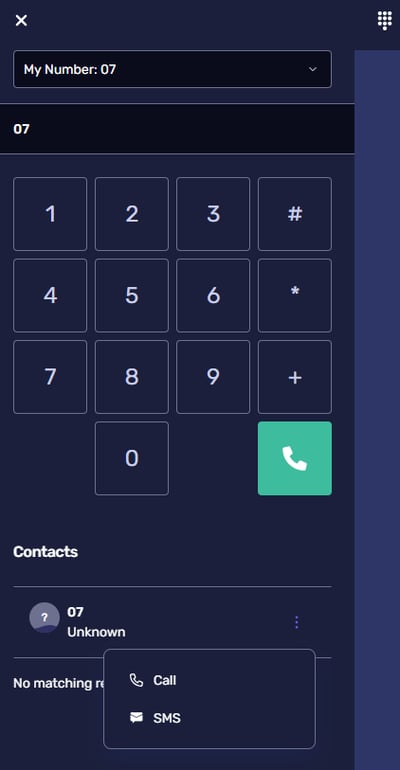
Open the Dial Pad on the right-hand side of the application.
Make sure ‘My Number’ is set to the mobile number you use for SMS.
Search for a contact with a mobile number, or manually type the mobile number you want to send an SMS to.
Select the contact or number shown beneath the Dial Pad, then click the ellipses (⋮) icon to open the submenu. Choose SMS.

A message box will appear where you can type your text message.
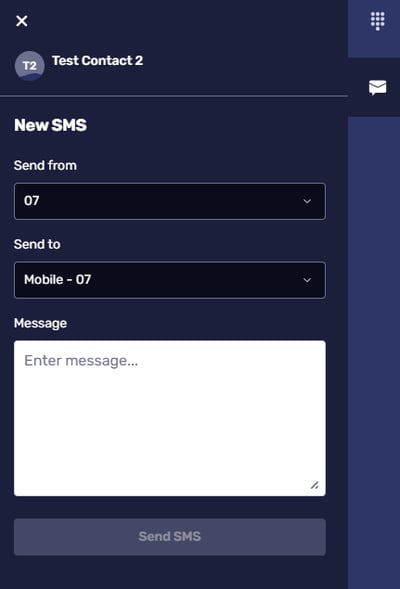

Select Send SMS.
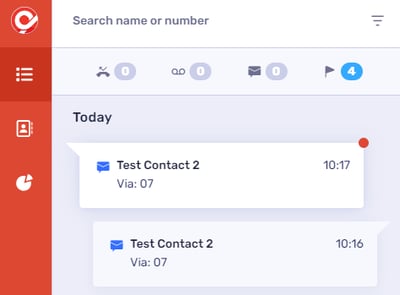
Your message will be sent and will appear in your main Activity Feed and within the contact’s Activity tab.

Receiving and replying to SMS on the Desktop & Web app
Open the Activity Feed and select an SMS entry for the contact or number you want to message.
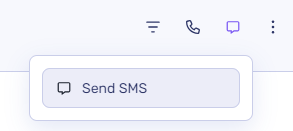
In the header bar, click Send SMS.

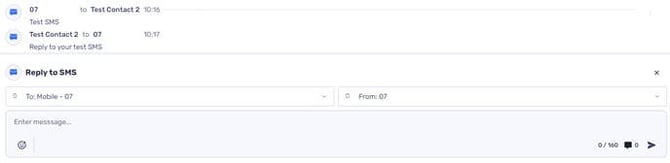
An SMS panel will appear at the bottom of the activity details, where you can type your message.
Select the send icon to deliver your message.



Sending SMS on the mobile app
Open the Keypad in the CircleLoop mobile app and begin typing the mobile number you want to send an SMS to.
Once a valid mobile number has been entered, the SMS icon will appear to the left of the green dial button.

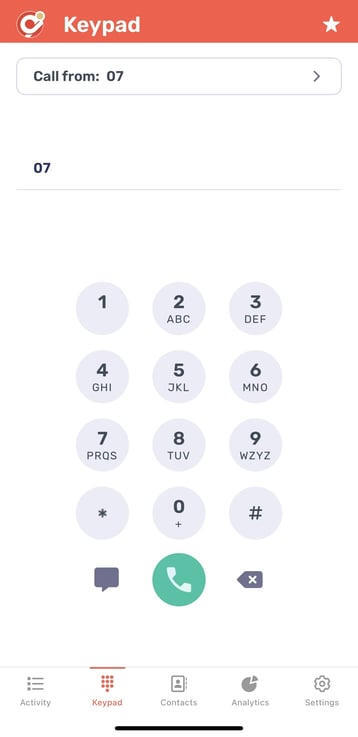

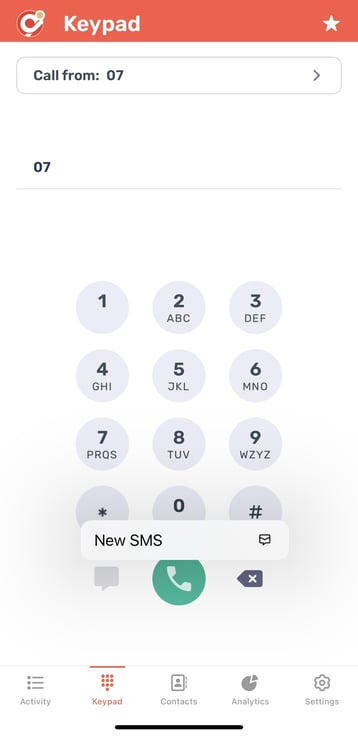
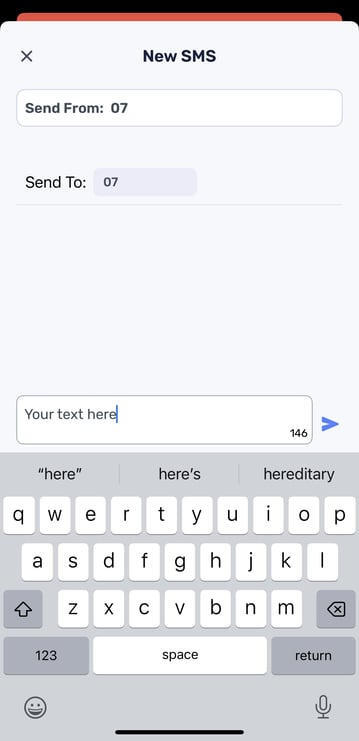
The New SMS screen will appear, allowing you to compose your message.
Tap Send to deliver your SMS.

Receiving and replying to SMS on the mobile app
Open the Activity screen in the CircleLoop mobile app. Locate the message record you would like to respond to.
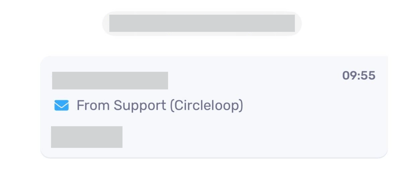
Press and hold on the message record to open the options menu, Tap Send SMS.
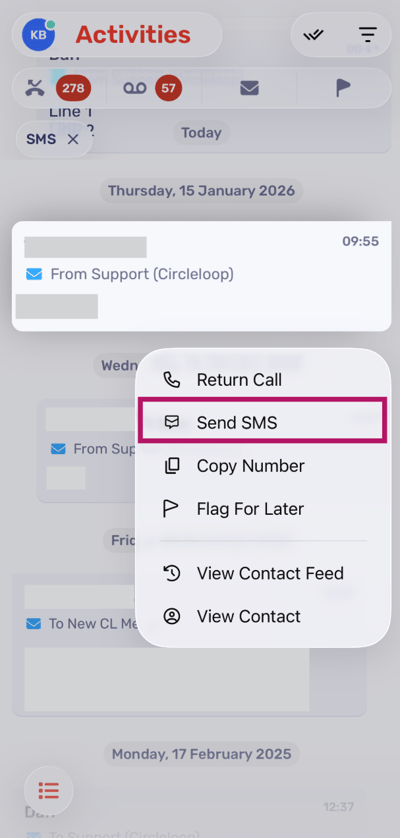
The New SMS screen will appear, allowing you to compose your message.
Tap Send to deliver your SMS.