
By default, calls to your direct CircleLoop number will continue ringing until you answer, the caller hangs up (missed call), or the ringing time reaches 60 seconds, and the call is dropped automatically.
You can change this behaviour in:
Settings > Calls
These settings apply only to numbers directly assigned to you.
Numbers assigned to Teams or Menus follow their own routing rules configured in Admin Settings.
What happens if your call is not answered?
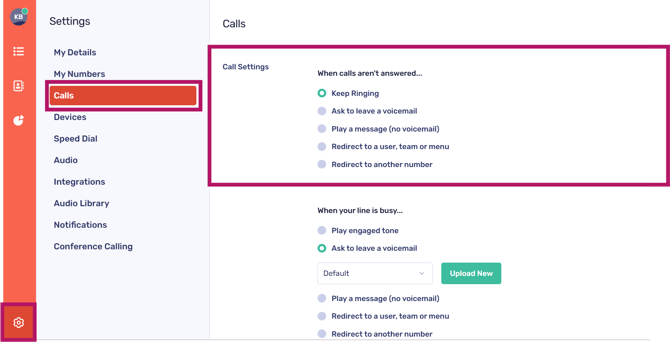
You can choose from the following options:
Keep ringing
Calls will continue to ring until answered or the caller disconnects.
Ask to leave a voicemail
Callers will be prompted to leave a voicemail if the call is not answered.
You can choose how long the call rings before voicemail activates.
Play a message (no voicemail) Callers are played your recorded message but are unable to leave a voicemail response.
Redirect to a user, team or menu
Redirecting to a user means callers will be sent to a specified CircleLoop user within your company.
Redirecting to a team allows callers to be connected to a shared number used by multiple team members.
Redirecting to a menu allows callers to follow a configured call routing menu.
Redirect to another number
Calls can be redirected to a designated external number, such as your mobile phone.
When selecting this option, additional settings are available:
-
Announce calls – If enabled, you will be asked to press 1 to accept the call. If you decline or the call rings out, this will follow your normal CircleLoop handling rules, such as going to voicemail.
-
Present dialled number – Displays the CircleLoop number that was called instead of the caller’s number.
What happens if your line is busy?
You can customise your CircleLoop app to perform the following actions when your line is busy:
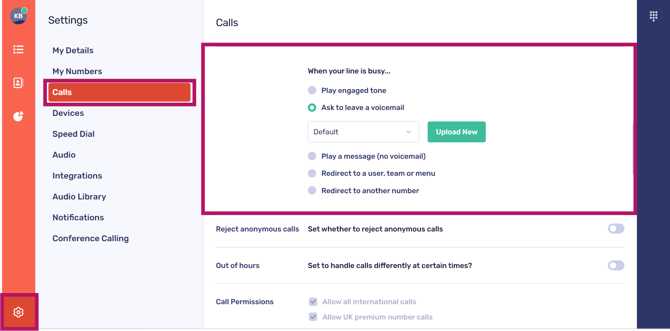
To configure these settings, simply click or tap the ‘Settings’ cog, then select ‘Calls’ and scroll down to the appropriate section.
You can choose from the following options:
Play an engaged tone Callers will be played a tone to indicate that your line is already in use.
Ask to leave a voicemail
Callers will be prompted to leave a voicemail if the call is not answered.
You can choose how long the call rings before voicemail activates.
Play a message (no voicemail) Callers are played your recorded message but are unable to leave a voicemail response.
Redirect to a user, team or menu
Redirecting to a user means callers will be sent to a specified CircleLoop user within your company.
Redirecting to a team allows callers to be connected to a shared number used by multiple team members.
Redirecting to a menu allows callers to follow a configured call routing menu.
Redirect to another number
Calls can be redirected to a designated external number, such as your mobile phone.
When selecting this option, additional settings are available:
-
Announce calls – If enabled, you will be asked to press 1 to accept the call. If you decline or the call rings out, this will follow your normal CircleLoop handling rules, such as going to voicemail.
-
Present dialled number – Displays the CircleLoop number that was called instead of the caller’s number.
Reject anonymous calls
You can choose whether to reject calls from withheld or anonymous numbers.
If this option is enabled, calls from numbers that withhold their caller ID will not connect to your line.
This setting applies only to numbers directly assigned to you.


