
CircleLoop can notify you by email if you miss a call or receive a new voicemail.
Notifications will be sent to the email address associated with your user account used for signing into the application. You have the option to choose which notifications you would like to receive, or to opt out of them entirely.
Managing your email notifications on Desktop & Web App
To manage these settings in the desktop app, navigate to the ‘Settings’ page, then select ‘Notifications.’ From there, scroll down to the relevant section of the page.
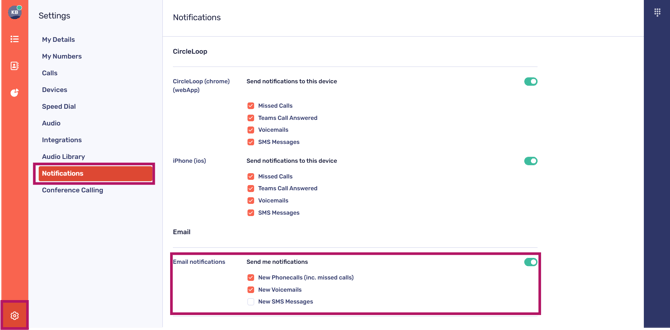
You can easily manage your preferences by toggling the ‘Email notifications’ setting. Turn it on if you would like to receive notifications, or turn it off if you prefer not to receive them.
Each notification setting features a checkbox that you can select if you wish to receive specific types of notifications. For instance, you may want to enable notifications for missed calls and new voicemails, while opting out of SMS notifications (as illustrated in the example above).
Managing your email notifications on mobile
To manage these settings on mobile, navigate to the ‘Settings’ page, then select ‘Notifications.’ From there, scroll down to the relevant section of the page.
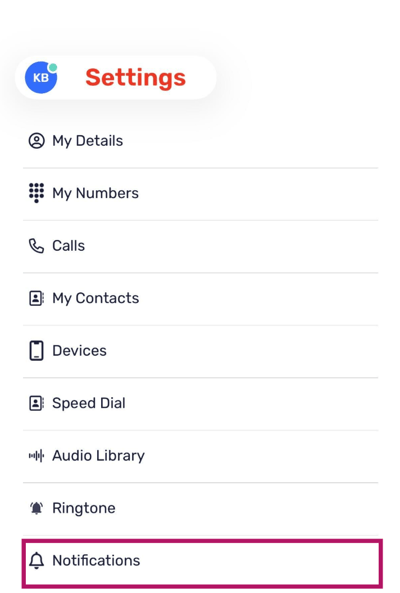
You can easily manage your preferences by toggling the ‘Email notifications’ setting. Turn it on if you would like to receive notifications, or turn it off if you prefer not to receive them.
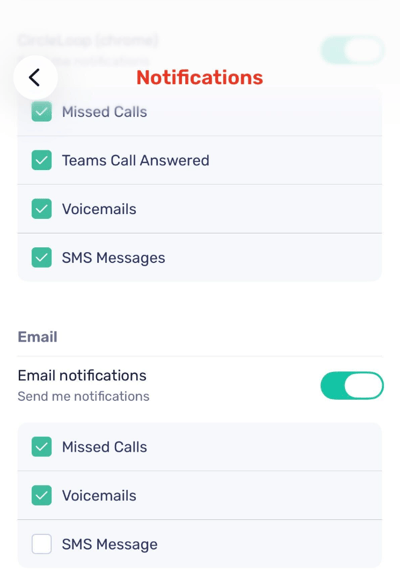
Each notification setting features a checkbox that you can select if you wish to receive specific types of notifications. For instance, you may want to enable notifications for missed calls and new voicemails, while opting out of SMS notifications (as illustrated in the example above).
Troubleshooting Email Notifications
If you are not receiving email notifications, please check the following:
The ‘Enable email notifications’ toggle is switched on
The box to enable notifications for Missed Calls/New Voicemail has been ticked
The email address that you have provided within your Profile is accurate and up-to-date
Email notifications are not currently being held within your email junk folder.
If you are still having issues with this feature, please contact your company administrator, CircleLoop onboarding agent or support team.
Managing Push Notifications for Your Devices on Desktop & Web App
CircleLoop allows you to control notification preferences for every device you are logged into.
To manage these settings on mobile, navigate to the ‘Settings’ page, then select ‘Notifications.’ From there, scroll down to the relevant section of the page.
Any devices you are currently logged into will appear here, for example:
iOS
Android
Windows
Mac
Chrome (Web App)
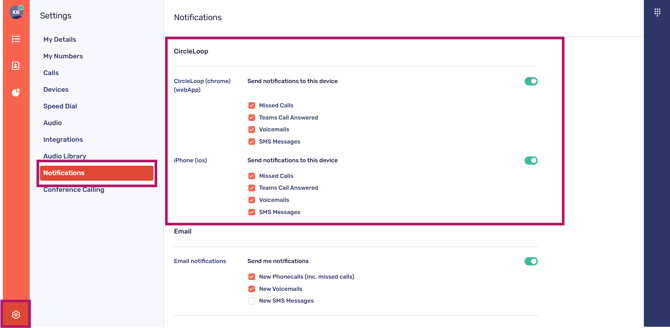
For each device listed, you can control:
-
Missed Calls
-
Voicemails
- Teams Call answered
-
SMS Messages (if a mobile number is assigned to your account)
Simply tick the notification types you wish to receive for that specific device, or untick them to stop notifications being sent there.
This allows you to customise how you’re alerted across different devices. For example:
You may want full notifications on your mobile device, but only missed call alerts on your desktop.
Or disable notifications entirely on a secondary device
Troubleshooting Notifications per device
If notifications are disabled for a device in this section, you will not receive push notifications on that device, even if they are enabled within the device’s system settings.
Both CircleLoop and your device’s system notification settings must allow notifications for them to appear.