Log out and view your CircleLoop version number on Desktop & Web App
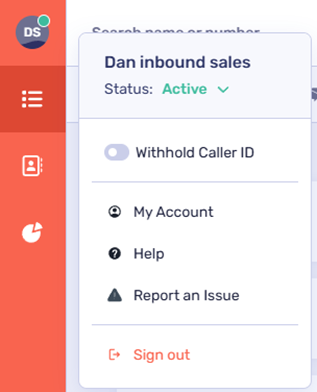
To log out of CircleLoop on desktop, click on your profile icon at the top left of the screen, then click ‘Sign out’.
View your CircleLoop version number and check for updates
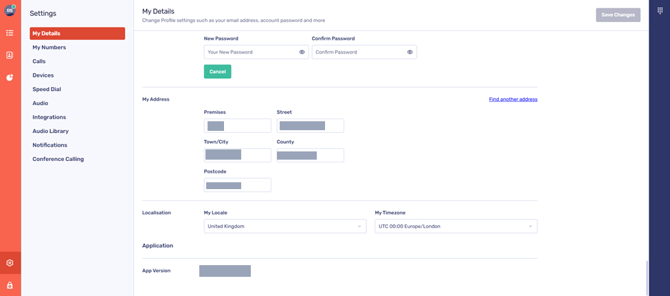
Click the ‘Settings’ cog at the bottom of your screen, then ‘My Details’. Scroll to the end of the screen to view the app version you are currently running.
When opening the desktop application, the system should immediately check for updates. When checking for updates, your system will let you know if you are on the latest version or will suggest a download to update to a newer version.
Signing out and checking for updates on mobile (iOS/Android)
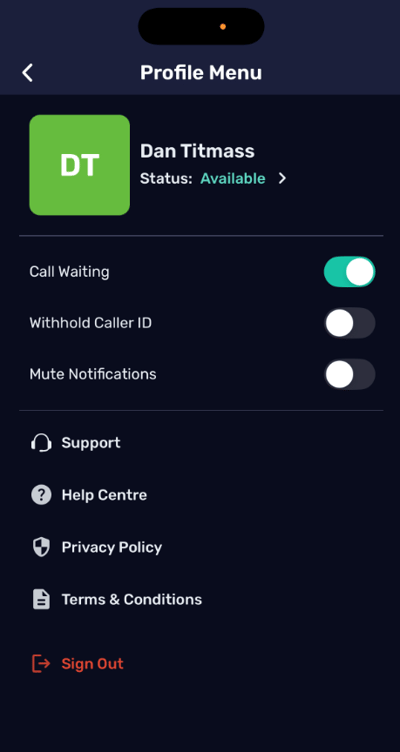
To sign out of CircleLoop on mobile devices (iOS and Android), tap on your profile icon in the top left corner of your screen.
Here, you will find the 'Sign Out' option, followed by the app version number.
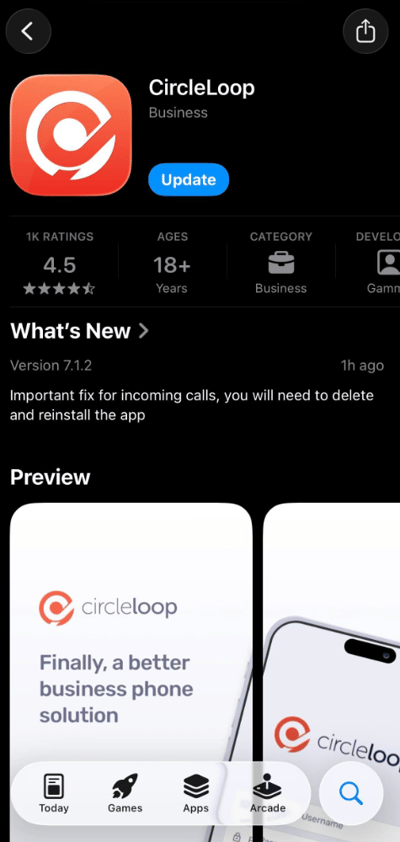
You can also manually update your app via the Apple App Store (iOS) or Google Play (Android) by searching for CircleLoop and installing the latest version.