Once you have started or accepted a call, your screen will change to reflect your call options.
Features during a call on Desktop & Web App
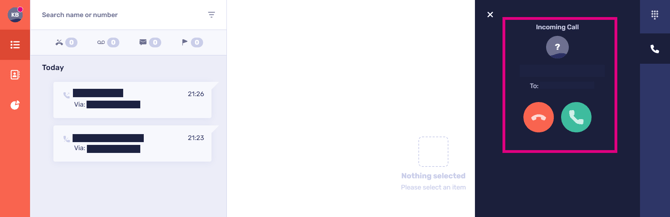
Incoming calls will display within the CircleLoop app.
Accept a call from the dialler screen.
Call transfer
CircleLoop allows you to transfer an active call to another destination, either internally to other CircleLoop users, Teams or Menus, or externally to contacts or any number of your choosing.
Internal destinations include other CircleLoop users, Teams or Menus. External destinations include contacts stored in your contact book, or an external number entered manually.
When transferring internally, you can identify whether a user is available by the green dot shown next to their name. Selecting a user from the list will transfer the call to them.
There are two types of call transfer available: attended transfer and blind transfer.
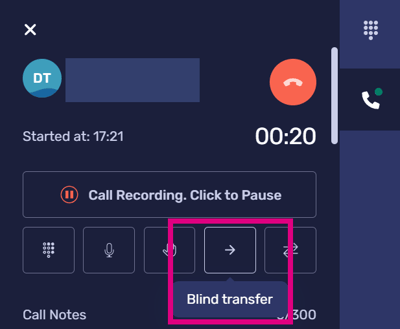
Blind transfer
A blind transfer sends the call directly to another destination without giving you the opportunity to speak to the recipient first.
Attended transfer
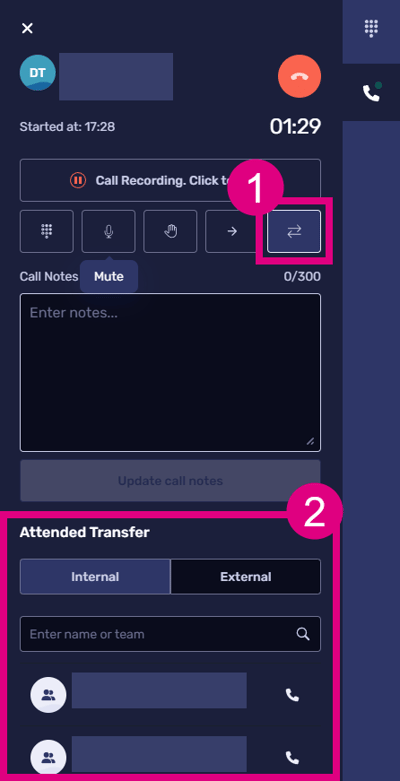
An attended transfer allows you to speak to the recipient before completing the transfer. This is useful when you need to provide context about the call before passing it on.

Transferring to an external number
If you need to transfer a call to a number that is not saved in your contacts:
While on a live call, select either the attended or blind transfer option.
Choose the External tab.
Enter the number you wish to transfer the call to in the search box.
Select the three dots icon and choose the number to initiate the transfer.
Call notes
To take notes during a call, simply click the notes icon on your active call screen.
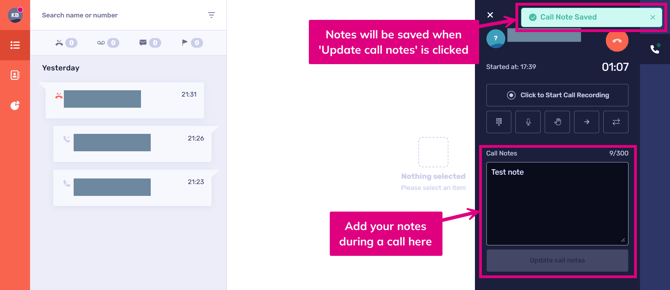
You can access your call notes later through the call activity/home screen.
Notes can also be added retrospectively to historical calls through the call activity/home screen.
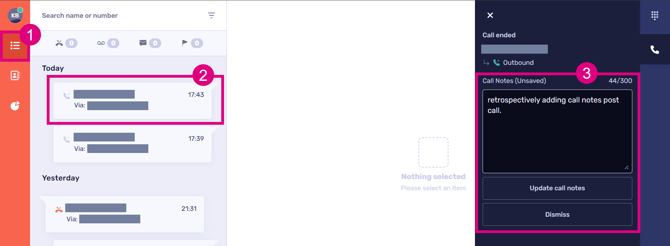
 Desktop/ Web app: Call note Settings(Wrap up)
You can change the behaviour of call notes to best suit your workflow.
This is amended in Settings > Calls, located in the 'Wrap Up' section.
Always stay open
What happens: The dialler stays open after every call until you manually close it.
Why: It gives you time to write, edit, or review notes at your own pace.
Best for: Users who want full control and time to reflect or document after calls.
Dynamic
What happens:
If you’ve started writing notes but haven’t saved them, the dialler stays open.
If there are no unsaved notes, the dialler closes automatically.
Why: It's smart behaviour: it only stays open when there’s work to finish.
Best for: Users who want a balance between automation and not losing unsaved work.
Always Close
What happens: The app immediately closes after the call ends, regardless of notes. If you had notes, they are automatically saved.
Why: Fast and hands-off, no prompts or manual actions.
Best for: Users who want speed and automation, and don't need to review notes post-call.
Mute
Turn off your microphone so the caller cannot hear you.
Hold
Place the caller on hold. The caller will hear hold music until the call is resumed.

Call recording
If call recording is enabled, you can pause and resume the recording during a call.
This is useful when taking sensitive information, such as payment details.
If recording is not already active, you can start it during the call

Dialpad
Open the keypad during a call. This is commonly used to enter digits when navigating IVR menus or entering passcodes.

Features during a call on mobile
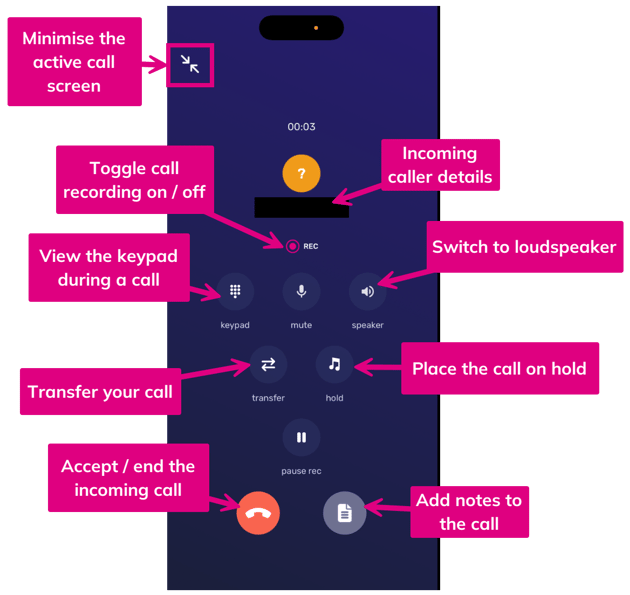
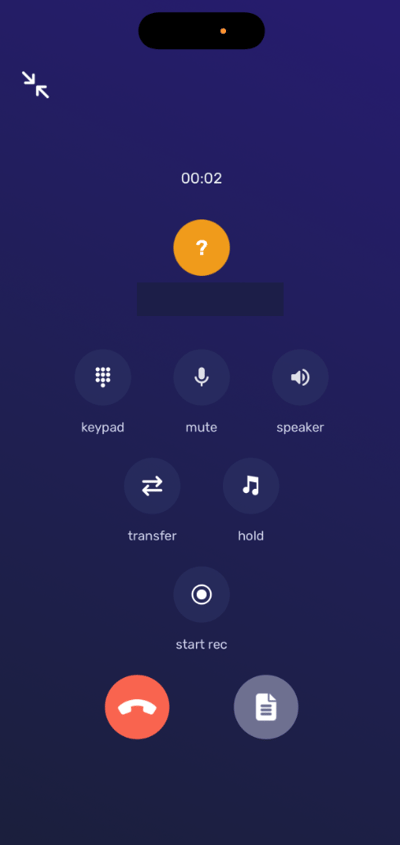
Once you have started or accepted a call, your screen will change to reflect your call options.
-
Minimise the active call screen to browse your phone during an active call
-
View the incoming caller details (if the caller is sharing them)
-
Keypad brings up the dial pad, allowing you to enter numbers. For example, if you need to enter a passcode, or use numbers to navigate an automated menu
-
Mute allows you to turn off the sound from your own microphone. This means the person on the other end of the phone will not be able to hear you speak
-
Switch the speaker on to listen to the call on your phone’s loudspeaker
-
Transfer allows you to send your current call to someone else. Pressing the transfer button brings up a list of other users on CircleLoop within your company. You can see whether the user is online (indicated by a green dot), and selecting them from the list will transfer the call
-
Hold allows you to pause the current call, placing the other caller on hold. You can change the hold music in your settings.
-
Accept a call or end an active call
-
Add call notes to an active call, which you can later view via your call history/activity page.
-
If call recording is enabled for your user, a recording button will appear, allowing you to pause and resume the recording during the call. If call recording is not enabled, the button will instead show ‘Start Rec’, which allows you to manually begin recording.
Call notes
Whilst on a live call, the call notes icon is located next to the end call button.
This opens a new page to type your note. To go back to the normal in-call screen, select 'back'
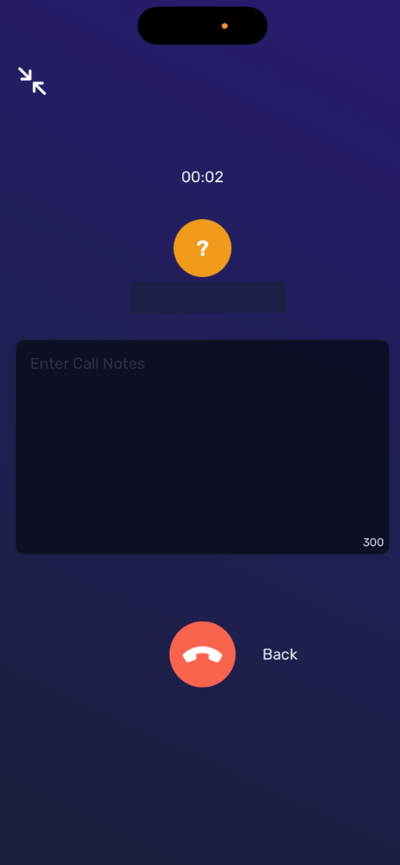
After a call has ended, you can set the dialer to stay open while you finish your note, and the note will be accessible through the activity section.
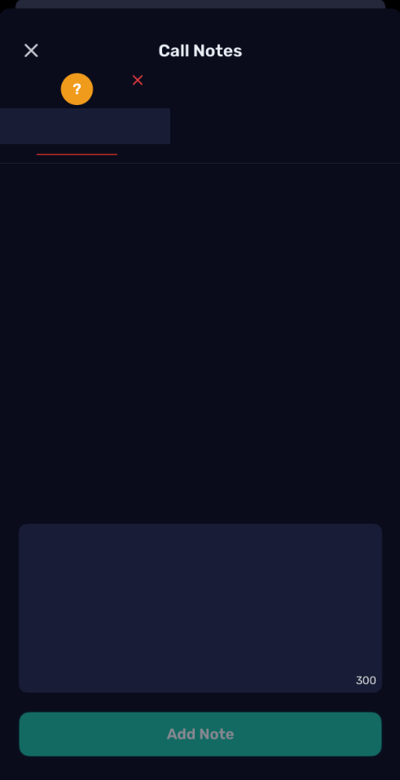
Mobile apps: Call note Settings(Wrap up)
You can change the behaviour of call notes to best suit your workflow.
This is amended in Settings > Calls, located in the 'Wrap Up' section.
Send Notes and Always Prompt
What happens: After every call, the app will ask you if you want to send notes, even if you didn’t write any.
Best for: Users who want full control and a reminder every time.
Send Notes and Prompt for Unsaved Notes
What happens: After a call, the app will only prompt you if you typed something but didn’t save it. If you didn’t write any notes, or if you saved them already, no prompt.
Best for: Users who want to be reminded only if they forget to save something.
Never Prompt and Send Automatically
What happens: The app will never ask you about notes. Any notes you saved will be sent automatically, and it won’t check or warn you if you forgot to write or save notes.
Best for: Users who want a fully automatic workflow and don’t want interruptions.
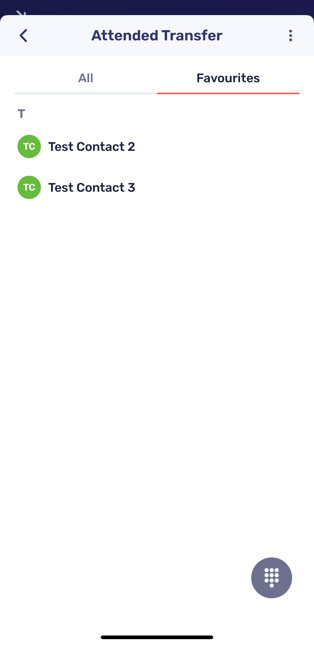
Call transfer
Transfer allows you to send your current call to someone else.
Pressing the transfer button displays a list of other users on CircleLoop within your organisation.
You can easily identify if a user is online by the presence of a green dot next to their name. By selecting a user from this list, you can seamlessly transfer the call to them.
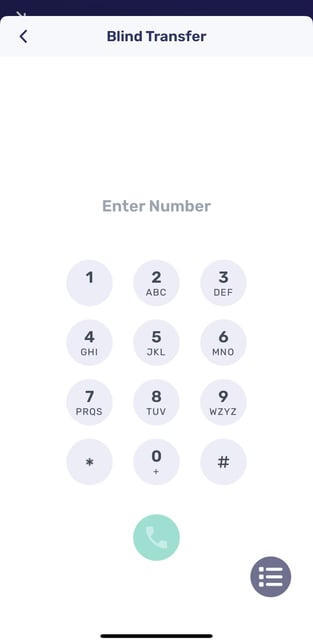
If the call needs to be transferred to a number not in your contacts list, you can use the dial pad icon to manually enter a number. To return to the contacts list, use the icon.
Contacts

Dial pad