
Categorising and filtering your contacts on Desktop & Web App
Within the contacts menu, you will find different categories.

-
All contacts are all of the contacts you have access to within your CircleLoop account (pulled from all categories)
-
Personal contacts are all contacts that you have manually added to your CircleLoop account

-
Company contacts are other users on CircleLoop within your company. You can see the online status of the other users, and their profile picture (if they have one)


-
Shared contacts are contacts which have been shared with other CircleLoop users within your company. If you added a shared contact, they will appear here as well as in ‘All' contacts and ‘Personal' contacts


-
Favourite contacts are any contacts that you have added as a favourite within the CircleLoop app.
Use filters to refine your contact search
To find a specific contact, you may find the filter option useful.
This can be accessed by navigating to your ‘Contacts’ screen, then clicking the icon next to the ‘Search name or number’ field.


You can then sort by the filters available here.
Using tags to refine your search
If you have assigned tags to any of your contacts, you can easily search for them by entering the tags into the ‘Search name or number’ field.
Editing a contact: your options
To edit a contact, go to the ‘Contacts’ screen, click on the contact you wish to edit, then click the three dots in the top right corner of the screen (next to the 'Dialler' icon).
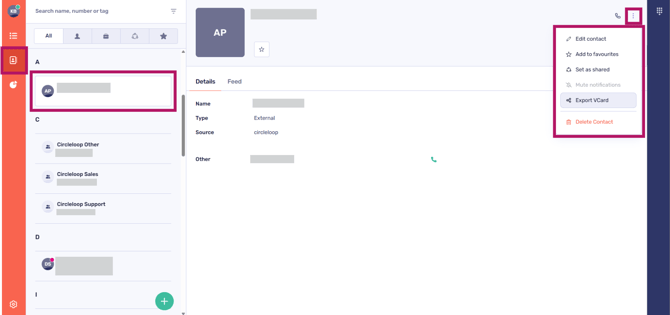

You will see the following options:
-
Edit your contact (we will cover this in greater detail later)
-
Remove the contact from your ‘Favourites’ (If already selected as a ‘Favourite’)
-
Remove the contact as a ‘shared’ contact (the contact will only be visible to you)
-
Mute notifications from this contact
-
Export VCard
-
Delete the contact from your CircleLoop contacts list.
For further details on how to edit and manage your contacts, please refer to the article titled ‘Managing your CircleLoop contacts.’ This resource provides a comprehensive overview of this functionality.
Categorising and filtering your contacts on mobile
Within the contacts menu, you will find different categories.
Click the ‘Contacts’ icon at the bottom of your screen.
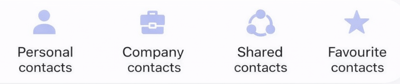
You will find all contact categories at the top of the ‘Contacts’ screen.


-
All contacts are all of the contacts you have access to within your CircleLoop account (pulled from all categories)
-
Personal contacts are all contacts that you have manually added to your CircleLoop account
-
Company contacts are other users on CircleLoop within your company. You can see the online status of the other users, and their profile picture (if they have one)
-
Shared contacts are contacts which have been shared with other CircleLoop users within your company. If you added a shared contact, they will appear here as well as in ‘All' contacts and ‘Personal' contacts
-
Favourite contacts are any contacts that you have added as a favourite within the CircleLoop app.

Use filters to refine your contact search
To find a specific contact, you may find the filter option useful.
This can be accessed by navigating to your ‘Contacts’ screen then clicking the icon between the ‘Search’ and ‘Add user’ buttons.


You can then sort by the filters available here.
On mobile devices, you can easily apply filters for individual contacts. Just tap on a caller card located within the ‘Activities’ screen.


Select the three dots and then choose the ‘Filter’ option.


Here are the filter options available for your selection:
-
Date
-
Messages
-
Calls
-
Direction (i.e. incoming or outgoing call activity)
-
Directory (i.e. internal or external contacts); And
-
Status (i.e. if you have flagged caller activity such as a voicemail note).
Use existing user tags to refine your search
If you have assigned tags to any of your contacts, you can easily locate them by entering the tags into the ‘Search' field, which can be accessed by clicking the magnifying glass icon or search bar.


Troubleshooting
Others cannot see a contact
If other users within your company are not able to see a contact that you have added, please check the following:
-
The ‘Set as shared’ toggle is turned on from the ‘Edit contact’ screen
If you are still having issues, please contact your CircleLoop Onboarding agent or Support team.