
CircleLoop's apps allow you to quickly and easily set up your phone system to your own business needs. This article explains the various 'Settings' available in each app and provides a brief overview of what each setting does and how you can configure it quickly.
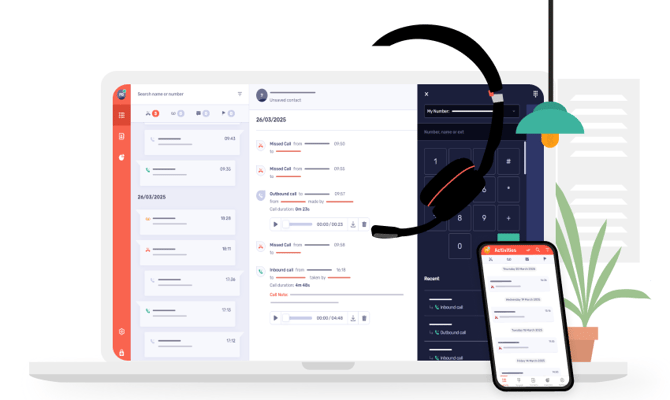
Settings in CircleLoop have now been split out into two pages, one page for User-related settings and one for Administrator-related settings.
User Settings are denoted by a settings cog.

Administrator settings are denoted by a lock and settings cog.

Options in the CircleLoop settings panel, in the order they appear:
User settings/features (available to all user types)
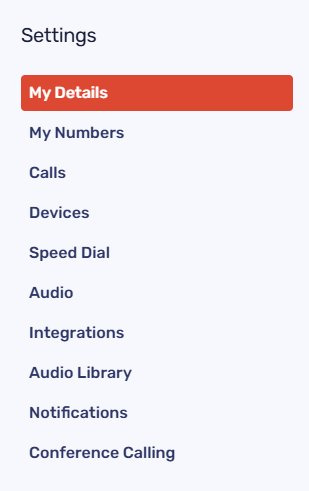
- My Details - Here's where you can change your own user details, including your email, password and time zone.
- My Numbers - View all phone numbers assigned to you and choose your default outbound (dialling) number.
- Calls- Control how your calls are handled when you can’t answer or during out-of-hours periods. This is also where you manage your call recording settings.
- Devices - View the CircleLoop apps you’re signed in to and add a device if you want to forward calls to your mobile instead of using the apps.
-
Speed Dial - Create and manage speed dial options by assigning short codes to contacts or phone numbers for quicker dialling.
- Audio- Select your headset or speaker for the desktop app and adjust input, output, and volume levels.
- Integrations - Access the integrations site to connect CircleLoop with services such as HubSpot, Pipedrive, and Capsule.
-
Audio Library - Access your personal and shared audio recordings, which can be used for custom voicemail greetings, menus, and other call settings.
- Notifications - Choose where you would like to receive notifications for missed calls, SMS and voicemails. (App, Email, Webhooks, Slack)
Please Note: Standard users (non-admins) will not see the Administrator icon.
Admin settings (available to Admin users and account Owners)
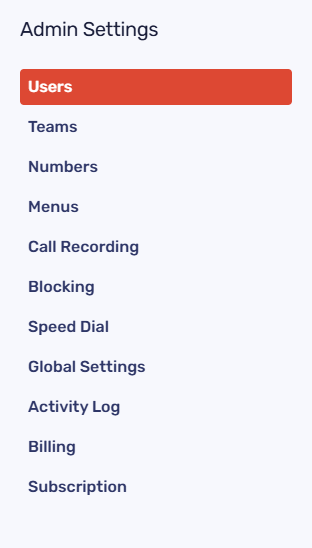
- Users - Add and manage users on your account, including individual configuration and upgrading or downgrading subscription plans.
- Teams - Create and manage teams, and assign users to shared groups such as Sales, Support, or General Enquiries.
- Numbers - Add new numbers and assign existing numbers to users, teams, or menus.
- Menus - Create call menus (IVRs) to route callers to the correct user or team, add extensions, and configure welcome greetings.
- Call Recording - Enable or disable call recording for users across your account.
-
Blocking - Block unwanted or nuisance callers by adding their numbers to the blocked list.
- Global Settings - Update settings that will be applied globally, including your company's name and more.
- Activity Log - View a log of user activity across your CircleLoop account.
- Billing - View your invoices, user tariffs, credit notes and usages.
- Subscription - Manage your payment and subscription details.