
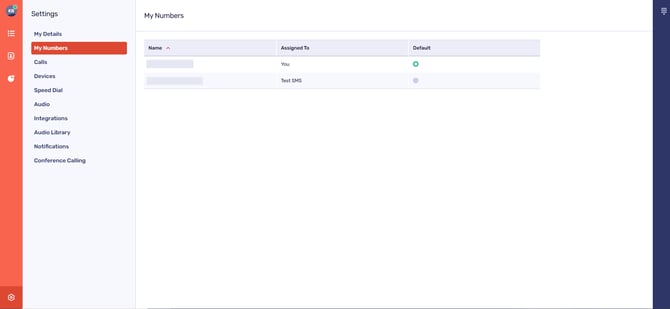
You can view and update your numbers within ‘My numbers’ in your CircleLoop settings, including selecting your default number to make calls from.
Choose a number to call from on Desktop & Web Apps
Click the cog icon to view your settings.
Next, click ‘My Numbers’
You can select a default number to dial from. This will be the number initially selected when you first open the dial pad.
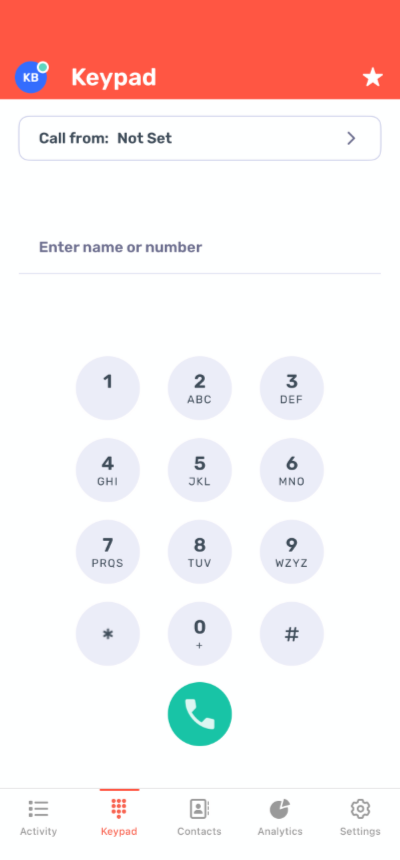
If you have more than one number associated with your account, you can change numbers from the dialler menu, as shown below.
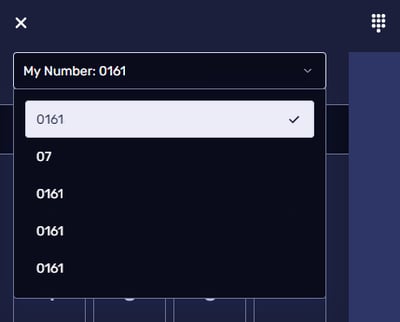
Please note! One number per user is displayed on an outbound call. The number chosen here determines the Presentation number for outbound calls placed on SIP devices.
Withholding your number on Desktop & Web App
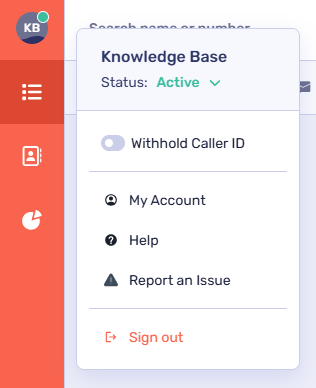
You can withhold your number when making an outgoing call. This means your number will not be revealed to the call recipient.
To do this, click your user icon in the top left of the screen and toggle the ‘Withhold Caller ID’ option.
Choose a number to call from on mobile
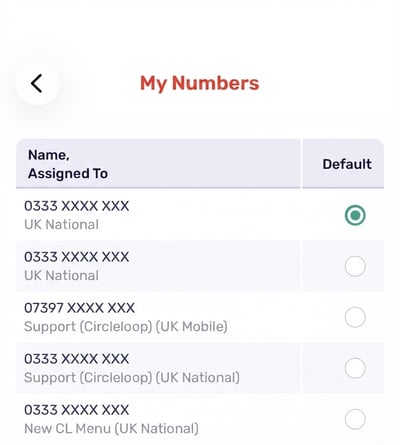
First, check that a number has been assigned to you by your Administrator. Tap the cog icon to view your settings then tap ‘My Numbers’.
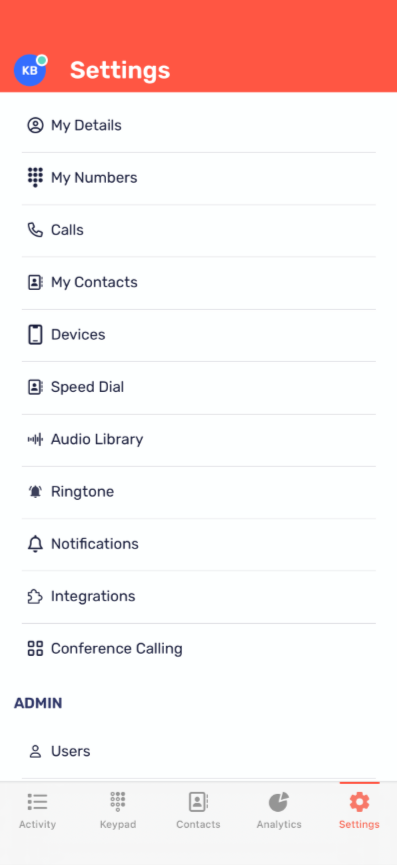
Select your default number from the list shown here (if more than one number has been assigned to your account).
Withholding your number (mobile)
On mobile, the steps to withholding your caller ID are simple.
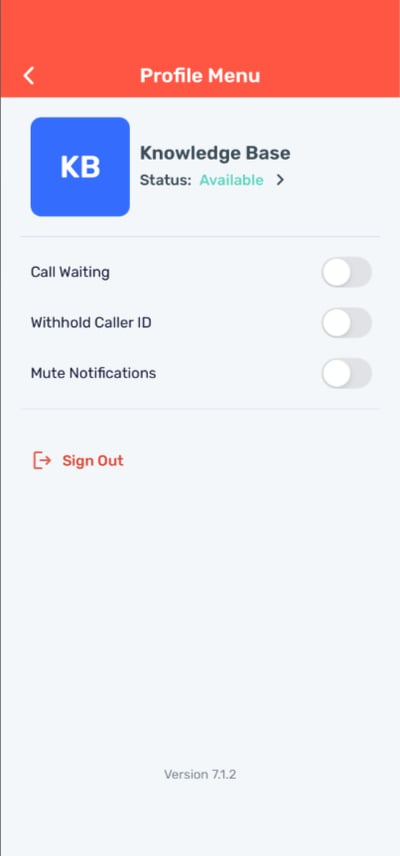
Tap your user profile icon in the top left of your screen to access your ‘Profile Menu’.
Then, toggle ‘Withhold Caller ID’ on.
Troubleshooting
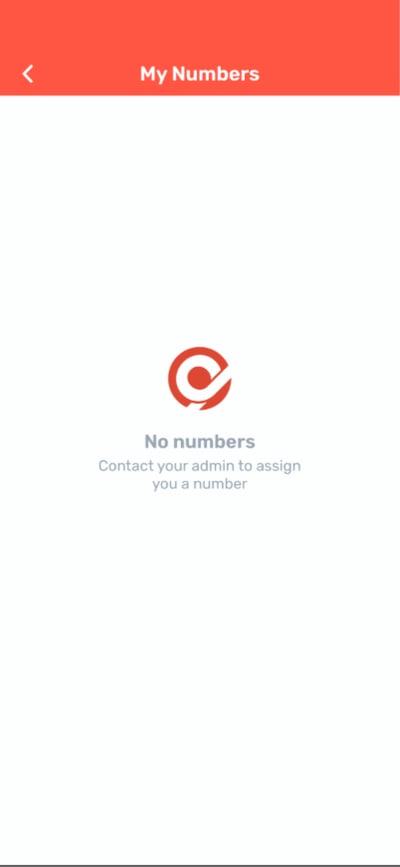
If no numbers appear within the 'My numbers' screen...
Please contact your account Administrator if no numbers appear on this screen. CircleLoop Admins can assign telephone numbers to users from within the admin settings. (Add link to ADMIN FUNC > ADD ASSIGN REMOVE MANAGE TELEPONE NUMBER)
If your calls are not being made from the correct number, please check the following:
-
The number at the top of your dial pad screen displays the number you wish to make the call from. If this is not the case you may be able to select the correct number from the drop down list
-
You have selected the default number that you wish to make calls from on the ‘My Numbers’ page (only applies if more than one number has been assigned to you).
If you cannot find the correct number you wish to make a call from within the drop down list available, please check the following:
-
The number has been added to your CircleLoop account by an Administrator within your company
-
The number has been assigned to you.
If you are still having issues with this feature, please contact your Administrator, CircleLoop onboarding agent or Support team.