
CircleLoop uses the term redirect for all call forwarding behaviour within the app. How a redirect works depends on where it is configured.
Redirect number (device level)
A redirect number can be added in Settings > Devices > Add Device.
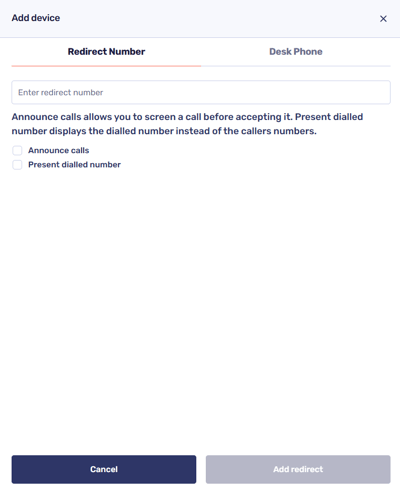
When you add a redirect number here, the external number is added as one of your devices. This means it will ring at the same time as your other active CircleLoop apps and devices.
This is useful if you want your mobile to ring alongside the CircleLoop app.
Only the signed-in user can add a redirect number at device level. This cannot be configured by an administrator for another user.
When adding a redirect number, you will see two optional settings:
Announce calls
If enabled, you will be asked to press 1 to accept the call. If you do not accept the call, it will follow your normal call handling rules, such as going to voicemail.
If the number you are redirecting to is already engaged and has voicemail enabled, it is recommended to enable Announce calls. Without this, calls may go directly to that voicemail instead of following your CircleLoop settings.
If you are redirecting to an answering service or similar system, it is usually best to disable Announce calls, as some systems may not support selecting an option before the call connects.
Present dialled number
If enabled, the business number that was dialled will be shown when the call is received. This helps identify business calls. Caller ID will not be displayed when this option is active.
Offline redirect
Offline redirect is designed as a safeguard in case your device loses data connectivity.
This can only be configured within the CircleLoop mobile app.
To set this up:
Go to Settings
Tap Devices
Select the device named “iOS (this app)” or “Android (this app)”
Add your mobile number in the box provided
When offline redirect is enabled, calls will be sent to your mobile number only if the app detects that it is offline or has poor connectivity. It does not ring alongside your other devices.
When using an offline number, your mobile phone cannot automatically identify that the call is a business call. To help with this, two optional settings are available:
Announce calls
If enabled, you will be asked to press 1 to accept the call. If you decline or the call rings out, this will follow your normal CircleLoop handling rules, such as going to voicemail.
Present dialled number
If enabled, your dialled CircleLoop number will be displayed when the call is received. Caller ID will not be shown unless viewed within the app's activity feed.
Redirect rules for users within call settings
Redirect behaviour for unanswered calls can also be configured in Settings > Calls.
This allows you to redirect calls to another user, team, menu or external number if your call is not answered.
These settings apply only to numbers directly assigned to you.
For full details on these options, please see the Call Settings guide.
Redirect rules for Teams and Menus
If a number is assigned to a Team or Menu, redirect and routing behaviour is managed in Admin Settings > Teams or Admin Settings > Menus.
Administrators can configure how calls are handled, including redirecting to users, other Teams, Menus, or external numbers.
These rules apply to the number assigned to the Team or Menu and are separate from individual user device redirects.
Troubleshooting redirect issues
Why are my calls going to my personal voicemail instead of CircleLoop?
If you have added a redirect number at device level and the external number is already engaged, calls may be handled by the voicemail of that external number.
To help prevent this, enable 'Announce calls'. This requires you to press 1 to accept the call and prevents it from being immediately handled by the external voicemail.
Why can’t I see who is calling when calls are redirected?
If you have enabled 'Present dialled number', the business number that was called will be displayed instead of the caller’s number.
If you would prefer to see the caller’s number, disable this setting.
Why aren’t calls reaching my answering service or external system correctly?
If you are redirecting calls to an answering service or a system that plays its own welcome greeting, check whether 'Announce calls' is enabled.
When Announce calls is on, the system must press 1 to accept the call before it connects. Some answering services or automated systems do not support this and the call may fail or disconnect.
In these cases, it is recommended to disable 'Announce calls'.