
Audio input/output and volume on Desktop & Web App
On CircleLoop (desktop), you can access a variety of audio options. In this article, we will explore each of these settings in detail:
-
Microphone
-
Call Audio
-
Call Ringing
-
Ringtone; And
-
Advanced Settings.
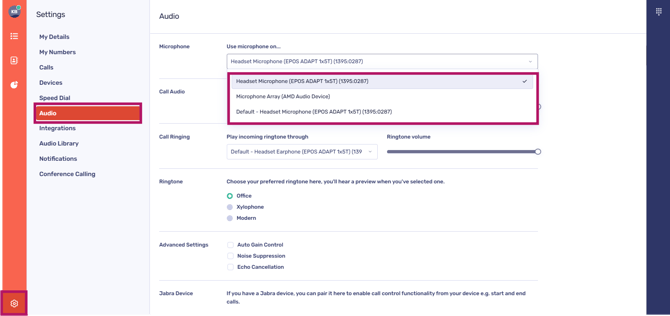
To access your audio settings on the desktop, simply click the cog icon and then select ‘Audio’.
When using the Mac and Windows apps, we strongly recommend that you use a good-quality headset. The built-in microphone on most computers won't be suitable for making phone calls, so we'd recommend you invest in a headset.
Audio Input / Microphone
If your device is equipped with multiple microphones, such as a built-in microphone on a laptop alongside a headset microphone, they will be displayed in this drop-down menu.
Use this menu to select your default microphone input for CircleLoop.
-Microphone Settings on Windows
Windows users can set default audio settings from within System Settings > Sound
-
First, plug in your USB headset (or connect to one via Bluetooth)
-
Open the 'Settings' menu, click ‘System’, then ‘Sound’
-
Under 'Input', select your headset from the list

-Microphone Settings on Mac
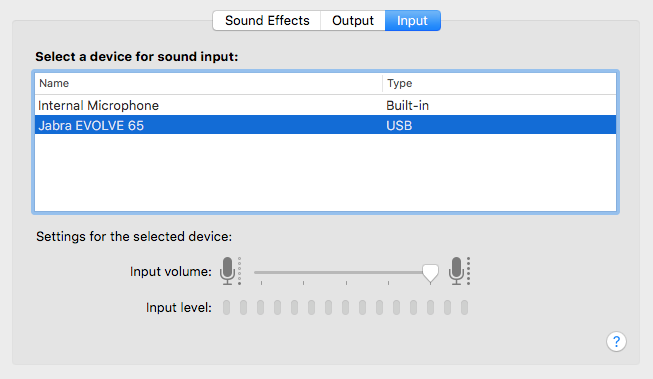
Mac users can easily set a default microphone by navigating to their ‘System Preferences’.
-
First, plug in your USB headset (or connect to one via Bluetooth)
-
Click your ‘System Preferences’ icon, then click ‘Sound'
Then select the ‘Input’ option and select your headset
Audio Output / Call Audio & Call Ringing
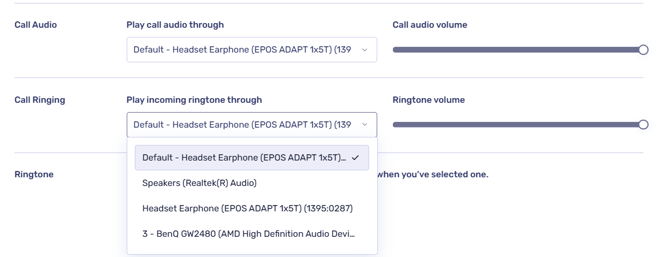
If you have multiple audio outputs, you will see this in a list. Examples of audio outputs include:
-
Headphones
-
External speakers
-
Monitor speakers
-
Laptop speakers.
You can choose audio outputs for both call ringing and call audio.
-
Call ringing refers to the sound that plays when you receive a call. This sound can either be the default ringtone or a ringtone of your choice that you have selected.
-
Call audio refers to the sound heard during a call, such as the voice of the individual on the other end of the line.
The volume sliders located to the right of the audio drop-down menus allow you to control the ringtone's loudness when receiving a call. This feature specifically applies to CircleLoop and serves as an alternative to adjusting the overall volume of your device.
Call ringing recommendations
To ensure that you can hear incoming calls, it is recommended that ‘Call Ringing’ is set to your computer’s default speakers, and your call audio volume is high. This way, you’ll still hear incoming calls even when you’re not wearing your headset
This can be configured within your ‘Audio’ settings > ‘Call Ringing’.
-
Mac: Choose 'Built-in Output'
-
Windows: Select your internal speakers (commonly 'Realtek')


Choose your preferred ringtone
CircleLoop includes three default ringtones for you to select. These will play during an incoming call.

Advanced settings
CircleLoop now offers enhanced audio settings designed to improve your overall experience with the application. These are:
-
Auto gain control - This feature is designed to ensure a consistent voice signal strength. It allows you to adjust the amplification of the received voice signal, keeping it within a stable range. Auto gain control operates by stabilising the output signal strength, providing uniform audio quality even when input levels fluctuate.
-
Noise suppression - Background noise, whether in an office or at home, can be quite distracting. To enhance clarity during phone conversations, you can activate background noise suppression. Just toggle the feature on or off as required to ensure the person on the other end can hear you clearly.
-
Echo cancellation - Echoes and feedback during calls can be quite frustrating, significantly affecting the overall quality of your conversations. By enabling the cancellation option in CircleLoop, you can eliminate these disturbances and improve your call experience.
Audio input/output and volume on mobile
The audio settings found on CircleLoop (mobile) work a bit differently.
You won't find options for microphone and call audio settings within this app, as these features primarily rely on your phone's settings. By default, CircleLoop utilises your mobile device's built-in microphone and speaker for audio functions.
For guidance, please consult the audio settings on your mobile device.
Choose your preferred ringtone
CircleLoop includes three default ringtones for you to select. These will play during an incoming call.
To find this screen, tap the ‘Settings’ cog at the bottom, then tap ‘Ringtone’.
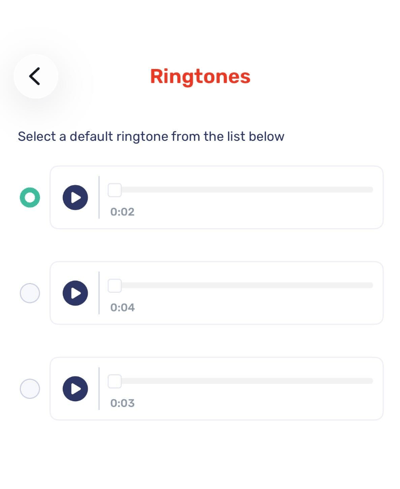
You have the opportunity to preview any of these ringtone options before making your selection.
Troubleshooting
Saving Your Preferences
Once configured, CircleLoop will remember your audio settings each time you reconnect the same device. You should only need to set this once, as Circleloop should recognise the default settings stored.
Not receiving sound
There are several reasons why sound may not be playing correctly.
Check that:
-
The ‘ringing volume’ slider in CircleLoop is not set to zero (desktop versions)
-
During a call, that you are not ‘muted’
-
The correct audio output is selected within the ‘Call audio’ section of sound settings (desktop versions)
-
The correct output device is selected within the ‘Microphone’ section of sound settings (desktop versions)
-
Your audio output is switched on, if it has a separate power source
-
Your device sound is unmuted, and volume is turned up
-
That your audio output is working with other programs, to determine if this issue is specific to CircleLoop
-
In your computer sound settings, that browsers or CircleLoop app are not muted (desktop versions).
Audio preferences failing to save on Windows
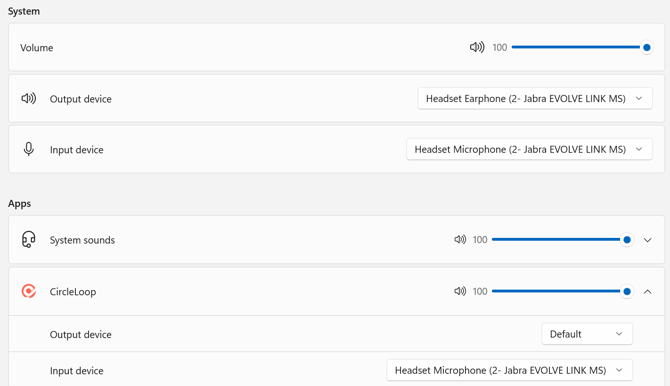
Windows allows you to set default audio devices for individual applications. These settings can be managed from the same ‘Sound' settings screen by scrolling down and selecting' Volume Mixer’
In Volume Mixer, you can assign your headset as the main output and input device for specific apps like CircleLoop
If your headset is selected here as both the main speaker and microphone, it will continue to be used by CircleLoop even if the Windows input or output defaults change
This can be useful if your computer occasionally switches to other devices by default, as it ensures CircleLoop continues to use your preferred headset
If you are still having issues with this feature, please contact your Administrator, CircleLoop onboarding agent or Support team.