
Adding and deleting a contact on Desktop & Web App
Create a new contact
To create a new contact on desktop, click the ‘Contacts’ icon, followed by the '+' icon at the bottom of your contacts screen.

A new window will appear on the right side of your screen - this is where you can add the personal details of your new CircleLoop contact, such as:
-
A first and last name
-
An email address
-
The name of the company they work for
-
Their position/job role within that company
-
Any tags you wish to associate with the user
-
Their contact number (select ‘Home’, ‘Mobile’, ‘Work’ or ‘Other’ from the drop-down menu).
‘Set as shared contact’ will allow other CircleLoop users within your company to access your contact’s details. Leave this option turned off for private contacts, or those which other CircleLoop users within your company will not need to use.

You can add multiple numbers per contact by clicking ‘Add New’ below each number.


Contact tagging
You can add 'tags' to your contacts, which allow you to filter users when searching your contacts list later.
When creating (or editing) a contact, add your tags within the ‘Tags’ field (for multiple tags, click the '+' icon). For example, you may wish to use ‘personal’ as a tag for personal contacts.

Deleting a contact
To remove an existing contact, go to your ‘Contacts’ screen, select the contact you want to delete, and then click the three dots located at the top right corner of the screen.
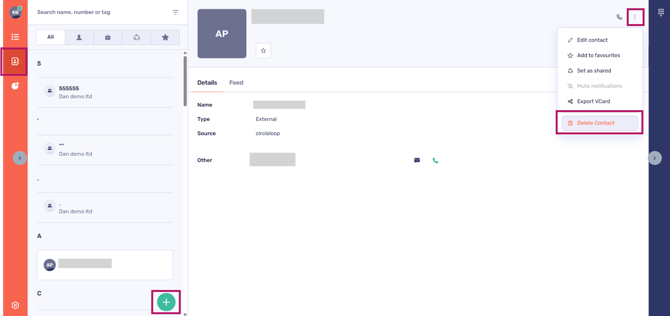

Click ‘Delete Contact'.
Please note! This action is irreversible. If you would like to add the contact again, you will need to do so manually from the beginning.
Adding a contact - troubleshooting
If you are not able to add a new contact, please check the following:
-
You have entered at least a first name for the contact
-
You have added at least one telephone number for the contact
-
Any email addresses added for the contact are in a valid format.
If you are still having issues, please contact your CircleLoop Onboarding agent or Support team.
Adding and deleting a contact on mobile
Create a new contact
To create a new contact on mobile, tap the ‘Contacts’ icon, followed by the '+' icon at the top right side of your screen.

You must enter:
-
First and last names
-
An email address
-
The name of the company they work for
-
Their position/job role within that company
-
Any tags you wish to associate with the user
-
Their contact number (select ‘Home’, ‘Mobile’, ‘Work’ or ‘Other’ from the drop-down menu).
‘Set as shared contact’ will allow other CircleLoop users within your company to access your contact’s details. Leave this option turned off for private contacts, or those which other CircleLoop users within your company will not need to use.


Deleting a contact
To delete a user from your CircleLoop contacts list on mobile devices, simply navigate to your ‘Contacts’ screen and tap on the contact you wish to remove.
To delete a contact, tap the three dots located in the top right corner of the screen, and then select ‘Delete contact’.
Please note! This action is irreversible. If you would like to add the contact again, you will need to do so manually from the beginning.


Adding a contact - troubleshooting
If you are not able to add a new contact, please check the following:
-
You have entered at least a first name for the contact
-
You have added at least one telephone number for the contact
-
Any email addresses added for the contact are in a valid format.
If you are still having issues, please contact your CircleLoop onboarding agent or Support team.