
As a CircleLoop Admin user, you have the ability to add, remove, view and edit the profiles of other CircleLoop users within your organisation.
Viewing your CircleLoop users on Desktop & Web App
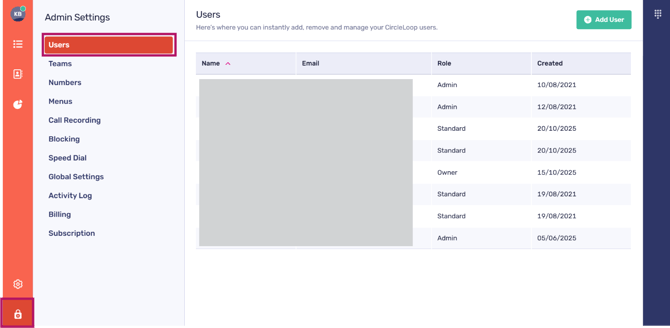
To access the administrator functionality, simply click on ‘Admin Settings’.
To view and manage users, simply click on the ‘Users’ tab located in your ‘Admin Settings’ screen.
Adding a user
Click ‘Add user’
You can then configure the new user by completing the following:
-
Choose the user’s subscription plan (Unlimited or Pay As You Go)
-
Enter the user’s name and email address
-
Enable Set as Admin if the user should be able to manage users and numbers on the account
-
Use the Teams Assign section to add the user to any existing Teams, if required
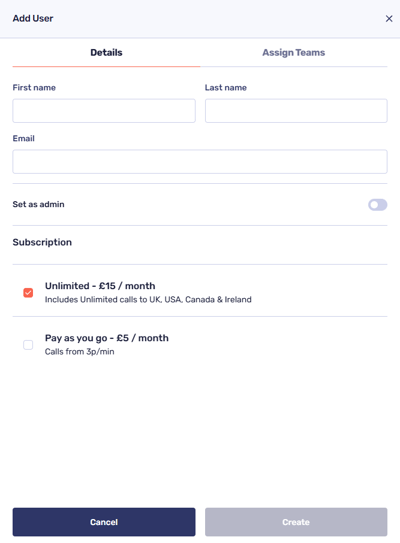

Once complete, click ‘Create’ to add the user.
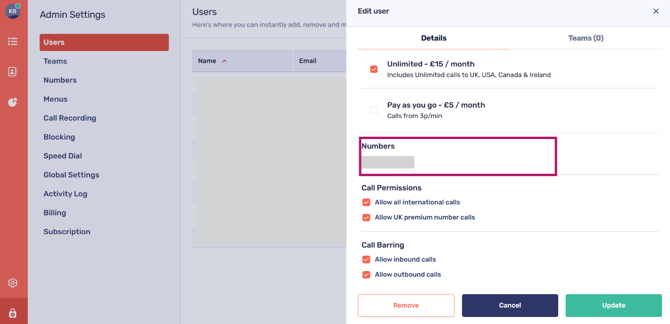
Each individual user is entitled to one phone number in their subscription price. If you need to assign a number to the new user, this can be done from the ‘Add, remove, view, search and unassign numbers’ section.
Editing a user
Please choose a user from the available list.
You can update user details, including:
-
The user’s name
-
The user’s email address
-
The user’s monthly tariff subscription
-
If your account has international or UK premium numbers activated, you can choose whether users are permitted to make these types of calls
-
You can manage how unanswered calls are handled for the user, for example, asking a caller to leave a voicemail or redirecting them to another user within your company. These user call settings only apply to calls made directly to a user (numbers assigned to that user) and do not affect calls routed via teams or menus.
-
If calls should be handled differently at certain times, for example, out of hours, you can also set this here.
Important Reminder: These settings need to be configured at the company level and must align with the user's call configuration in order for them to be effective.
-
The option to set whether to reject anonymous calls can also be configured here.
For further details regarding the configuration settings mentioned above, please refer to the 'Call Settings and Voicemail' section in this knowledge base.
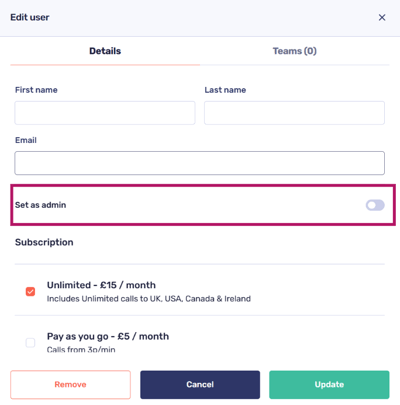
You have the option to designate the user as a CircleLoop administrator, should you choose to do so.
Removing a user
Select a user from the Users list and choose the option to remove them from the account.
Once deleted, the user will no longer be able to access CircleLoop.
Viewing your CircleLoop users on mobile
As a CircleLoop Admin user, you have the ability to add, remove, view and edit the profiles of other CircleLoop users within your organisation.
To access the administrator functionality, simply tap the ‘Settings’ cog then navigate down to ‘ADMIN’.
To view and manage users, tap ‘Users’.
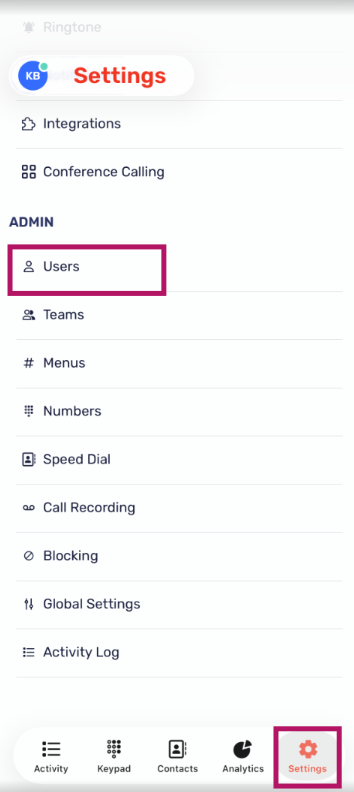
Adding a user
Click ‘+’ symbol to begin adding a new user.
You can then configure the new user by completing the following:
-
Choose the user’s subscription plan (Unlimited or Pay As You Go)
-
Enter the user’s name and email address
-
Enable Set as Admin if the user should be able to manage users and numbers on the account
-
Use the Teams Assign section to add the user to any existing Teams, if required
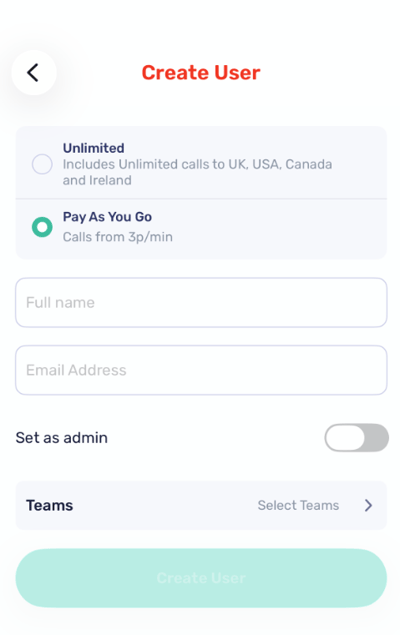
 Once complete, click ‘Create user’ to add the user.
Each individual user is entitled to one phone number in their subscription price. If you need to assign a number to the new user, this can be done from the ‘Add, remove, view, search and unassign numbers’ section.
Editing a user
Please choose a user from the available list.
You can update user details, including:
-
The user’s name
-
The user’s email address
-
If your account has international or UK premium numbers activated, you can choose whether users are permitted to make these types of calls
-
You can manage how unanswered calls are handled for the user, for example asking a caller to leave a voicemail or re-directing them to another user within your company
-
If calls should be handled differently at certain times, for example out of hours, you can also set this here.
Important Reminder: These settings need to be configured at the company level and must align with the user's call configuration in order for them to be effective.
-
The option to set whether to reject anonymous calls can also be configured here.


For further details regarding the configuration settings mentioned above, please refer to the 'Call Settings and Voicemail' section in this knowledge base.
You have the option to designate the user as a CircleLoop administrator, should you choose to do so.
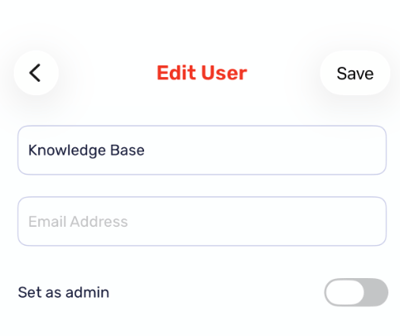
Removing a user (Delete user)
Select a user from the Users list and choose the option to delete the user from the account.
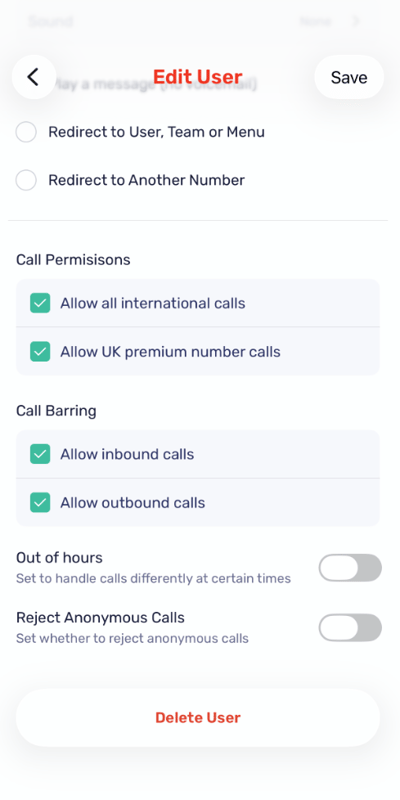
Once deleted, the user will no longer be able to access CircleLoop.
Troubleshooting
Can’t add a new user or update an existing user
If you are unable to add a new user or update a user's details within your company, please review the following steps:
-
You have successfully filled out all the necessary fields, including the user’s full name and email address.
-
The email address you provided is valid and unique, meaning it has not been previously used within CircleLoop.
If you continue to experience issues, please reach out to your Administrator, CircleLoop onboarding agent or Support team for assistance.