
CircleLoop Admin users can manage all telephone numbers on the account from the Numbers section within Admin Settings. From here, you can add new numbers, view existing numbers, search for specific numbers, and assign or unassign numbers to users, teams, or menus.
Viewing and Searching Numbers
Within Admin Settings > Numbers, you’ll see a list of all telephone numbers on your account.
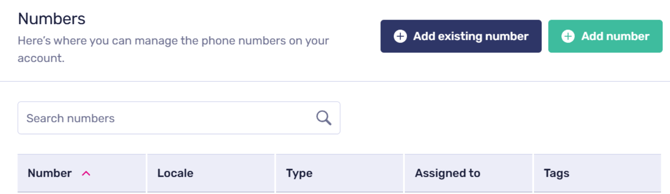
For each number, you can view:
-
The telephone number
-
The locale
-
The type (User, Team, or Menu)
-
Who the number is currently assigned to, if applicable
You can use the search bar at the top of the page to quickly find a specific number on an account.
Assigning and Unassigning Numbers:
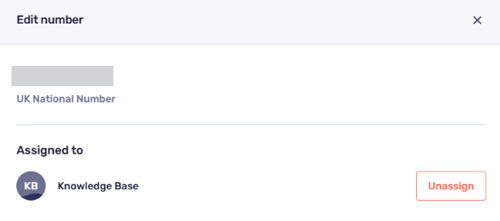
Selecting a number from the list will open the Edit number screen.
Assigning a number
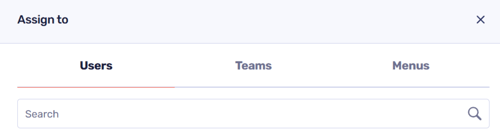
If a number is unassigned, click Assign and choose whether to assign the number to a:
-
User
-
Team
-
Menu
Once selected, click Done to apply the assignment. Once assigned, the telephone number will follow the call settings configured for the user, team, or menu it is assigned to
-
Assign numbers to users for direct inbound and outbound calling.
-
Assign numbers to teams for shared call handling across multiple users.
-
Assign numbers to menus when calls should be routed using menu options.
Unassigning a number
If a number is already assigned, you can click Unassign to remove it from the current user, team, or menu. The number will then appear as unassigned and can be reassigned as needed.
 Adding a Number
Every CircleLoop user subscription includes one phone number, but Admin users can add additional numbers to the account as required.
To add a new number:
-
Go to Admin Settings.
-
Select Numbers.
-
Click Add Number +.
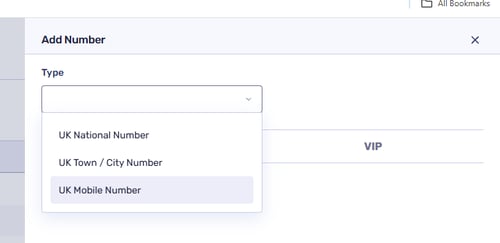
- Choose the type of number you want to add.
-
Select a number from the list of available options and click Done
The number will then be added to your account. You’ll be prompted to assign the number to a user, team, or menu.
If a number is assigned to a team, multiple users can answer and make calls using the same number. This is ideal for shared lines such as a main office number or departments like Sales or Accounts.
Types of Numbers You Can Add:
CircleLoop supports the following UK number types, which can be added through any CircleLoop app from £2.00 per month + VAT:
-
UK Town or City numbers
-
UK National 03 numbers
-
UK Mobile numbers
UK Town or City Numbers
UK geographic numbers allow you to choose an area code associated with a specific town or city. These are ideal if you want your business to present a local presence to customers in a particular area.
UK National 03 Numbers
CircleLoop provides national 03 numbers from its own 0333 Ofcom-allocated range.
03 numbers are a cost-effective option, as calls to them are included in minute bundles across UK phone providers. This makes them a popular choice for businesses looking for a national presence without additional cost to callers.
More information about 03 numbers is available on the Ofcom website.
Please note: CircleLoop does not support 05, 08, or 09 number ranges. These numbers can be expensive for your customers to call, so we recommend using an 03 number instead.
UK Mobile Numbers
Our mobile numbers are major network numbers and are treated exactly the same as calling providers such as Vodafone, EE, O2 and Three. Your customers won't be blocked from calling these numbers or charged extra, unlike the premium 07 numbers offered by some other providers.
Our mobile numbers also offer support for sending and receiving text messages (SMS) using the CircleLoop app. However this is limited to only support SMS to/from UK mobile numbers.
Removing Numbers
Only Admin users can remove numbers from the account.
To remove a number:
-
Go to Admin Settings > Numbers.
-
Select the number you want to remove.
-
If the number is assigned, click Unassign first.
-
Once unassigned, select Delete.