
CircleLoop makes it easy for administrators to set up Teams, ensuring that incoming calls are directed to the right people.
Adding a new Team on Desktop & Web App
To add a new Team on desktop, click the ‘Admin Settings’ padlock, then ‘Teams’.
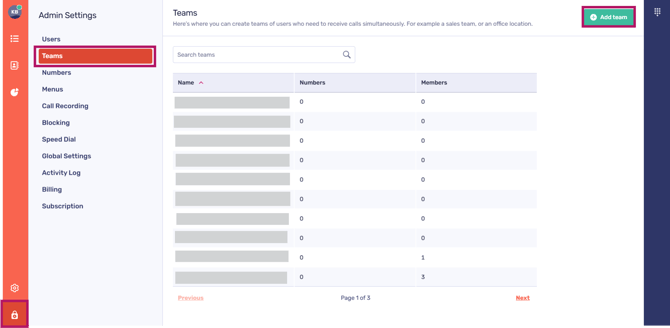
A list of existing Teams will be presented here. You can use the navigation options at the bottom of the page to seamlessly move between menu pages.
To create a new team, just click on ‘Add team’ located in the top right-hand corner.
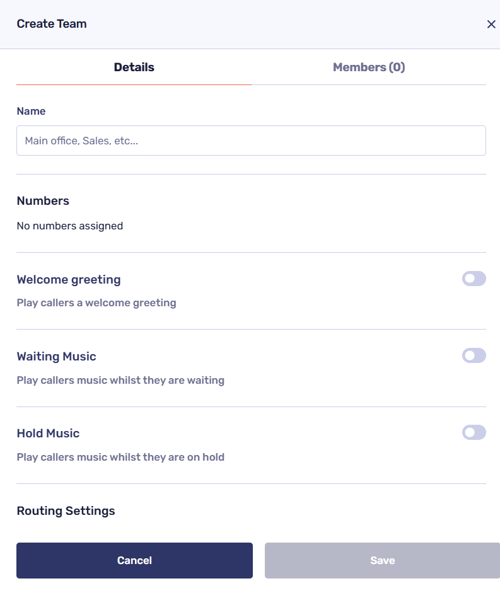

Here, you can:
-
Give your Team a unique name
-
View the number assigned to your Team
-
Record a custom welcome greeting, waiting music, and/or hold music (if you wish)
-
Configure the routing settings within the team (i.e. an incoming call will ring everyone within the Team simultaneously, send incoming calls to each team member in order, or send incoming calls to each team member in turn.
You can also configure what happens if a call goes unanswered, or if the line is busy (i.e. prompt the caller to leave a voicemail).
Adding Team members
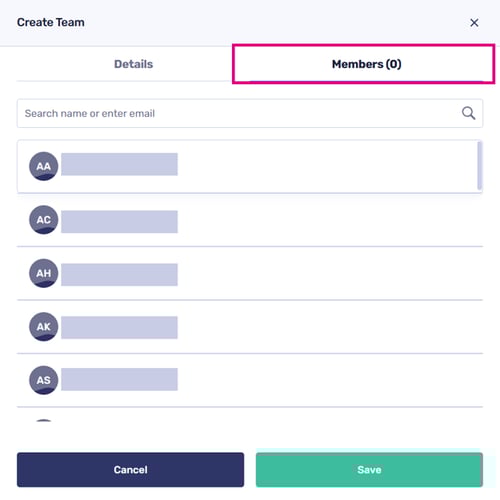
Click the ‘Members’ tab to assign CircleLoop users to a Team.
Teams out of hours settings
You can configure the ‘Out of Hours’ settings for Teams just like you do for your regular calls and Menus. To activate this feature, simply toggle the setting to the "on" position.
You can then set the Team’s availability for each day of the week individually.
For each day, choose the availability status and how calls should be handled. By default, the Time option is set to All Day. If you want calls to be answered only during specific hours, change the Time option to Between, which allows you to define a start and end time for that day (for example, making the team available between 09:00 and 17:00).

Reject anonymous calls
Finally, choose if you’d like for the menu to reject anonymous calls by adjusting the toggle alongside this setting.
Simply click ‘Save’ to apply these settings to your new Team, and you’re all set!
Editing or removing a Team
Teams settings can be amended at any time via the ‘Teams’ screen.
Simply click on the name of a Team to:
-
Update its details (i.e. its name)
-
Assign new Team members, or delete members you no longer wish to be associated with the Team
-
Re-configure the call routing settings
-
View the Team’s number/CLI
-
Amend the audio associated with the welcome greeting and waiting music
-
Re-configure the Team’s ‘out of hours’ settings
-
Amend the Team’s voicemail settings (if activated)
-
Adjust the Team’s settings to manage the acceptance or rejection of anonymous calls.
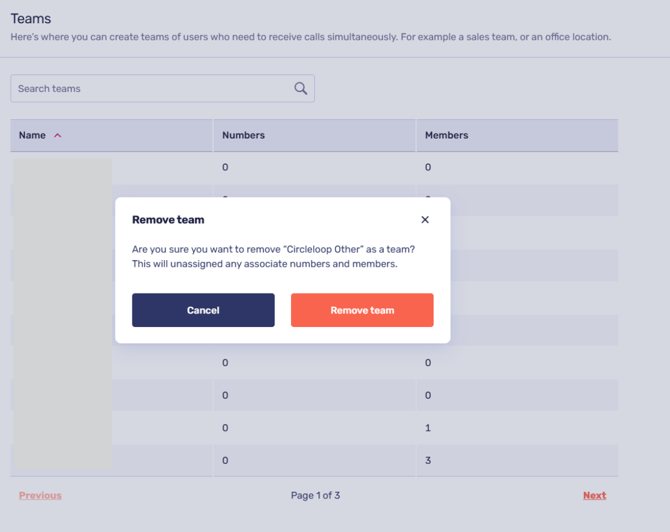
You can also remove a Team from CircleLoop on this screen.

Adding a new Team on mobile
To add a new Team on mobile, tap on the ‘Settings’ cog.
Next, scroll down until you reach the ‘ADMIN’ section. Please note that all settings listed under this header are intended solely for CircleLoop administrators.
Tap ‘Teams’.
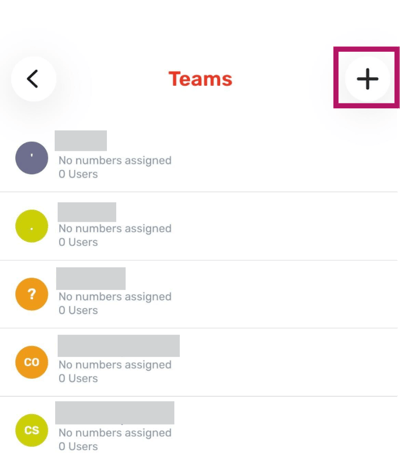

The ‘Teams’ screen provides a comprehensive overview of all teams within your organisation. It includes the CLI/number assigned to each team, along with the total number of users associated with the team.
To create a new Team, simply tap the '+' icon located at the top right corner of the screen.
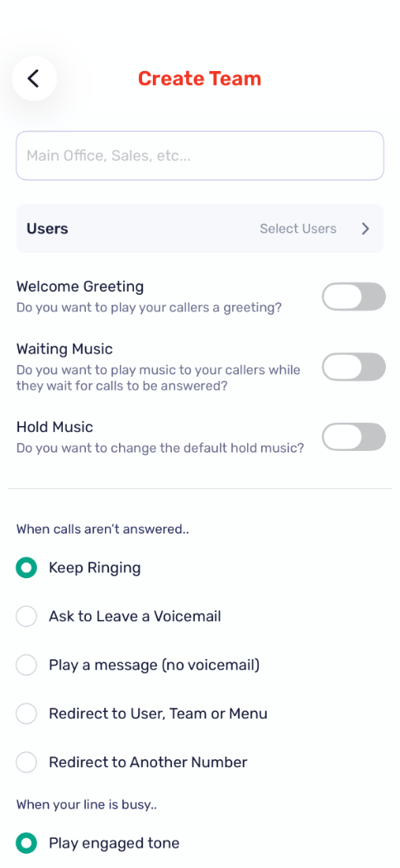
 Here, you can:
-
Give your Team a unique name
-
Add CircleLoop users to the Team
-
Record a custom welcome greeting, waiting music, and/or hold music (if you wish)
-
Configure the out-of-hours settings relating to the Team
-
Configure the routing settings within the team (i.e. an incoming call will ring everyone within the Team simultaneously, send incoming calls to each team member in order, or send incoming calls to each team member in turn
-
Finally, choose if you’d like for the menu to reject anonymous calls by adjusting the toggle alongside this setting.
Tap ‘Create Team’ once you have configured these settings to your liking.
Editing or removing a Team
Once a Team is created, it can be edited or removed.
To do this, return to the ‘Teams’ screen and tap on the Team you wish to edit/remove.
You can modify its details here. To remove the Team, scroll to the bottom of the screen and select ‘Delete Team’. Please be aware that once you tap this option, the Team will be permanently deleted and cannot be recovered. If you wish to reinstate it, you will need to set it up again from the beginning.
Troubleshooting
If your Team is not receiving calls, please check the following:
-
A telephone number is directly assigned to the Team
-
-
Go back to the Admin Settings menu
-
Select Numbers

-
Click the number you wish to assign to your new Team
-
In the number details, click Assign

-
From the Assign Number To team, click Teams
-
Select your new Team and click Done
-
-
-
The Team is included in an active routing setup (for example, a Menu routes calls to it)
Team settings will not take effect until a number is assigned to the Team, or it is actively used within a call routing configuration.